


This one is for architects, interior designers and anyone modelling in AutoCAD, Revit, SketchUp or Archicad on a laptop, who spends the day orbiting a model through the gap between two palettes.
What goes on each screen
CAD has the opposite problem to most jobs. The interface is dense but small; the model is what needs the pixels.
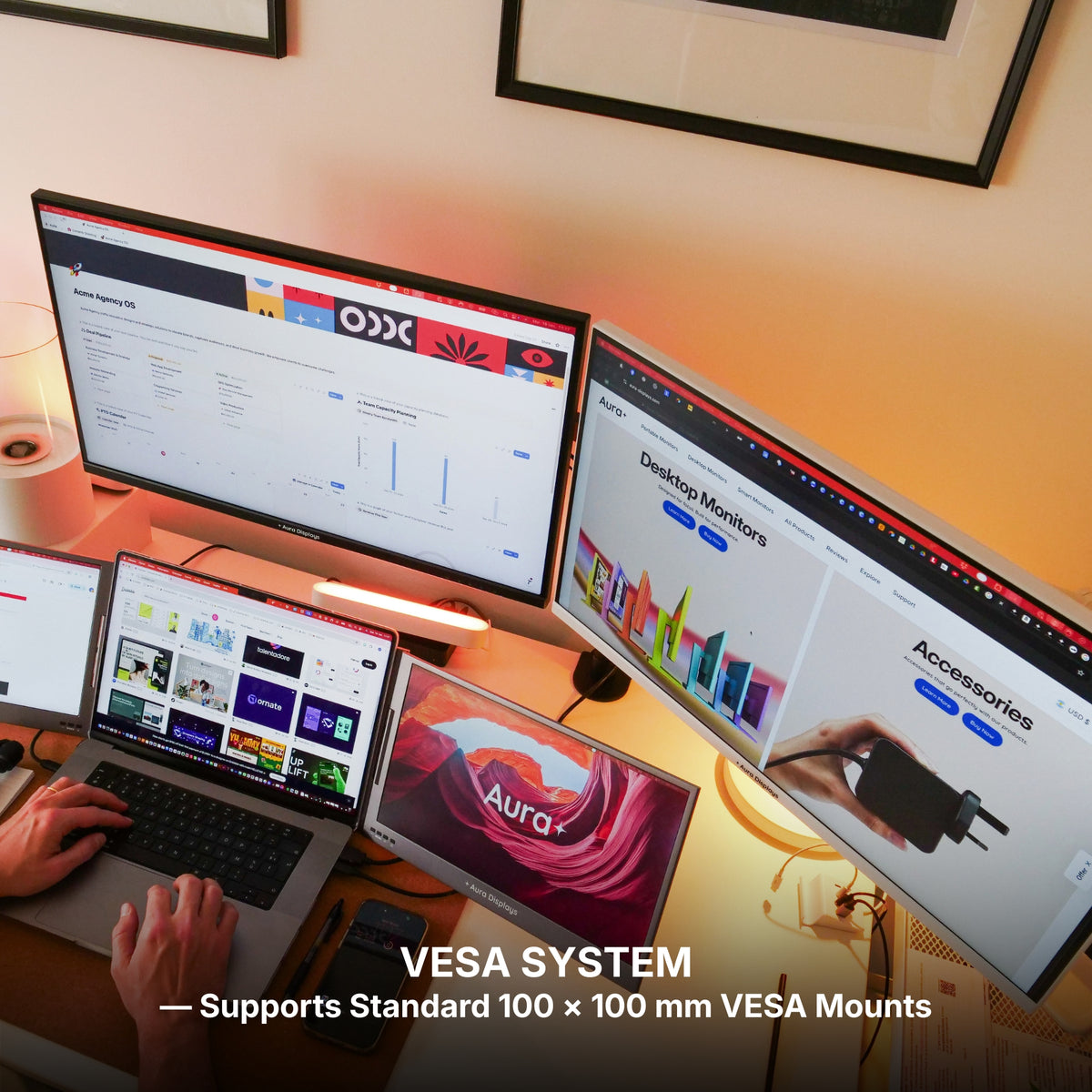
- The big screen: the model, and nothing else. The 3D view or the active plan, full screen, with no docked columns cutting into it. Every palette in front of it is a piece of building you cannot see.
- The laptop display: the palettes. Properties, the project browser or navigator, layers, tool palettes. It sits closest to your hands and you read it for values, not geometry, so a smaller, sharper screen suits it.
- A third surface, if you have one: the references. The consultant's PDF, the previous revision, the site photo, the markup set. Things you compare against, not things you edit.
If you only add one screen, make it the big one and move the model to it. Putting the palettes on a new screen and leaving the model on a laptop display is the upgrade that feels like it changed nothing.
The software settings that make it usable
AutoCAD. Drag Properties (Ctrl+1), Layer Properties and Tool Palettes (Ctrl+3) by their title bars onto the laptop screen, where they float. Then type WSSAVE and name the workspace, so a restart does not scatter them. Since AutoCAD 2023 you can also drag a drawing tab out of the main window to float it on another monitor: the plan on one screen, a detail on the other. Ctrl+0 toggles Clean Screen when you just want the drawing.
Revit. Properties and the Project Browser undock by their title bars; park both on the laptop screen. Then drag a view tab out of the main window onto the other monitor: 3D on the big screen, the live plan beside it, selections shared between them. If a palette disappears, View tab, User Interface, and tick it back on.
SketchUp. On Windows, Entity Info, Materials and Components live in the Default Tray (Window, Default Tray). Drag the tray out by its title bar and park it on the laptop screen; Window, Manage Trays keeps the arrangement. On a Mac the panels already float.
Archicad. Palettes float by default. Once they are where you want them, save the layout under Options, Work Environment, so it reloads with the project.
Two system settings. On Windows, Settings, System, Display: select the big screen and tick "Make this my main display", so dialogs and new windows open where you are looking. On a Mac, set it as the main display in System Settings, Displays. Then check scaling: a 27-inch 4K panel is comfortable at 150%, and if your laptop runs at a very different percentage, some older CAD palettes blur or jump in size when dragged across. Matching the two percentages fixes it.
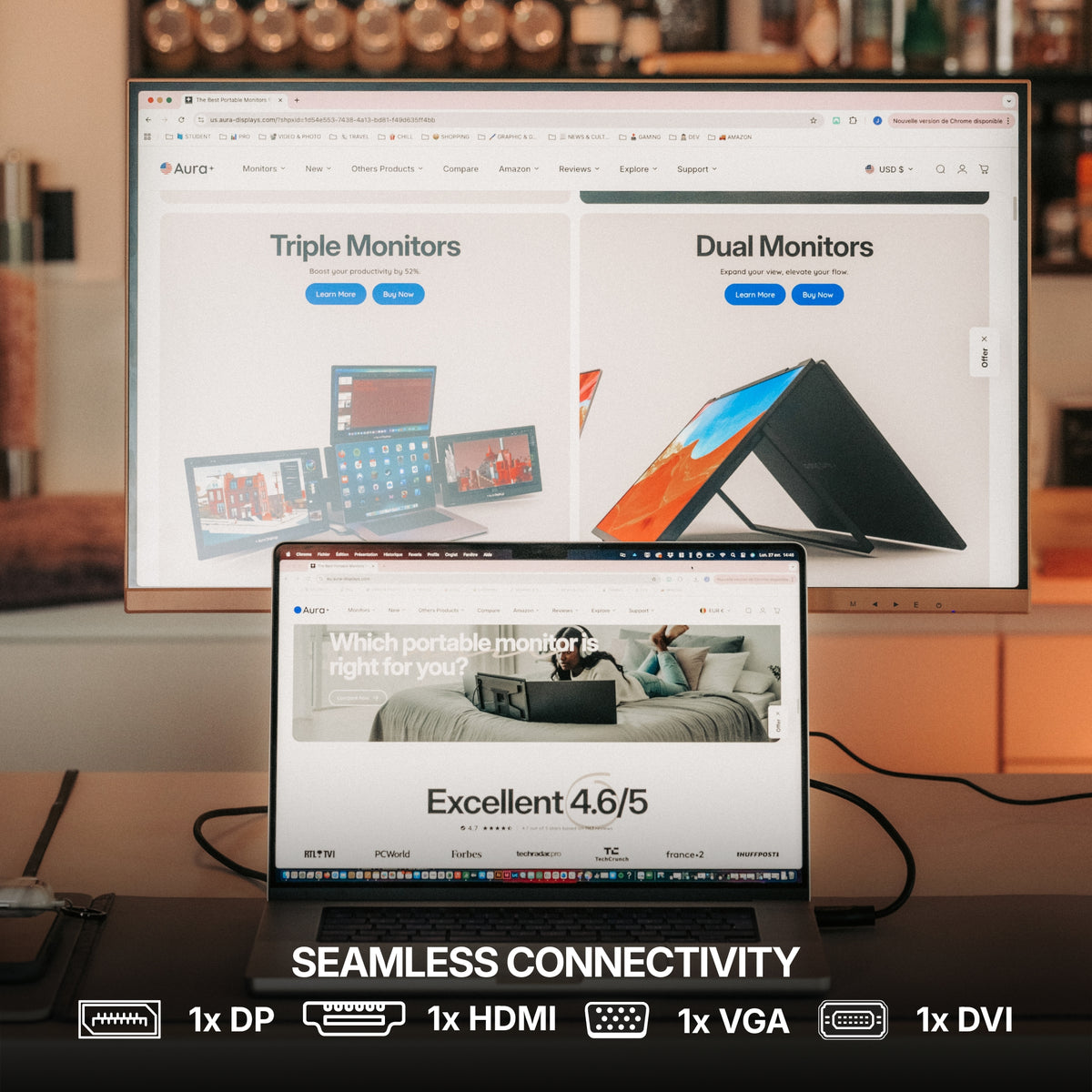
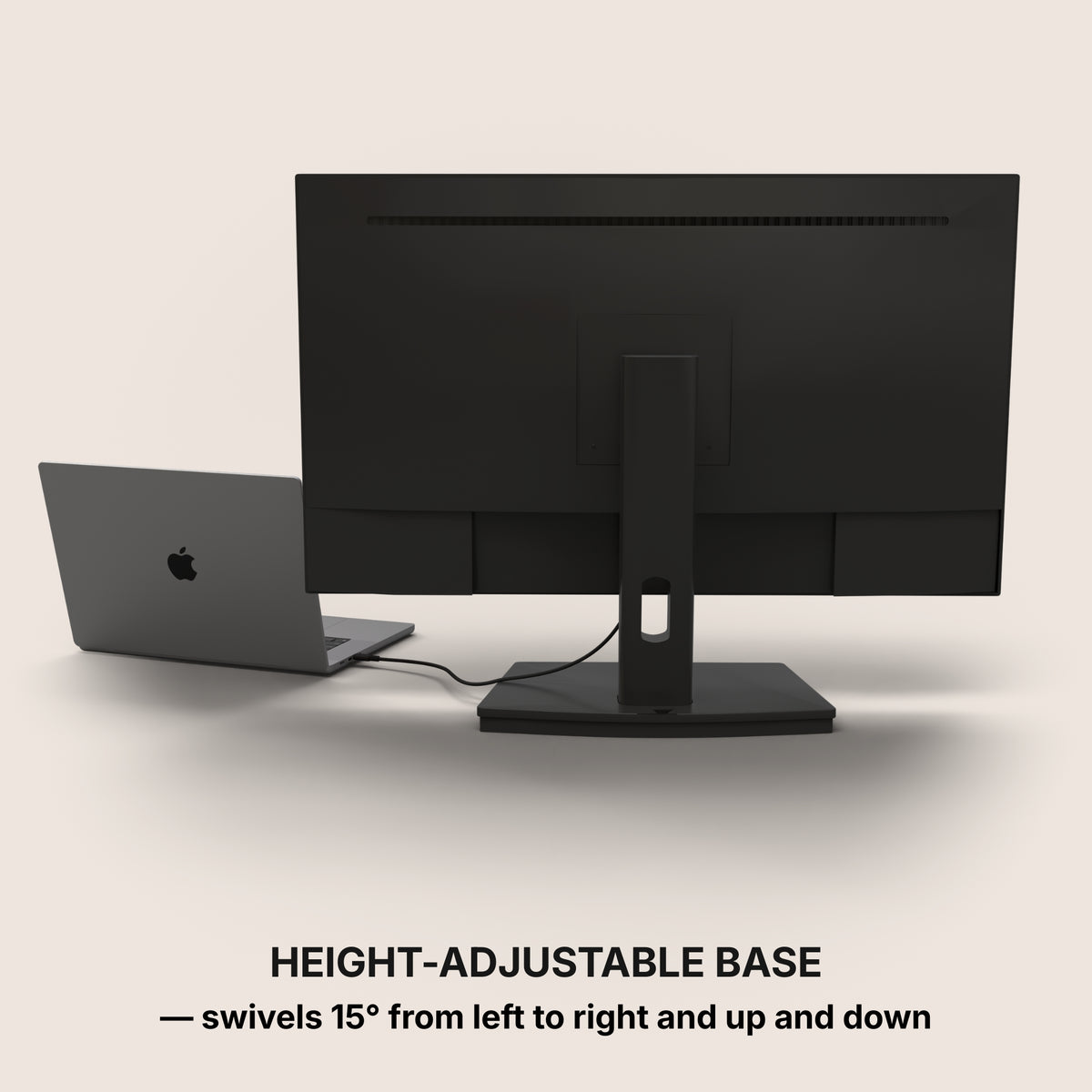
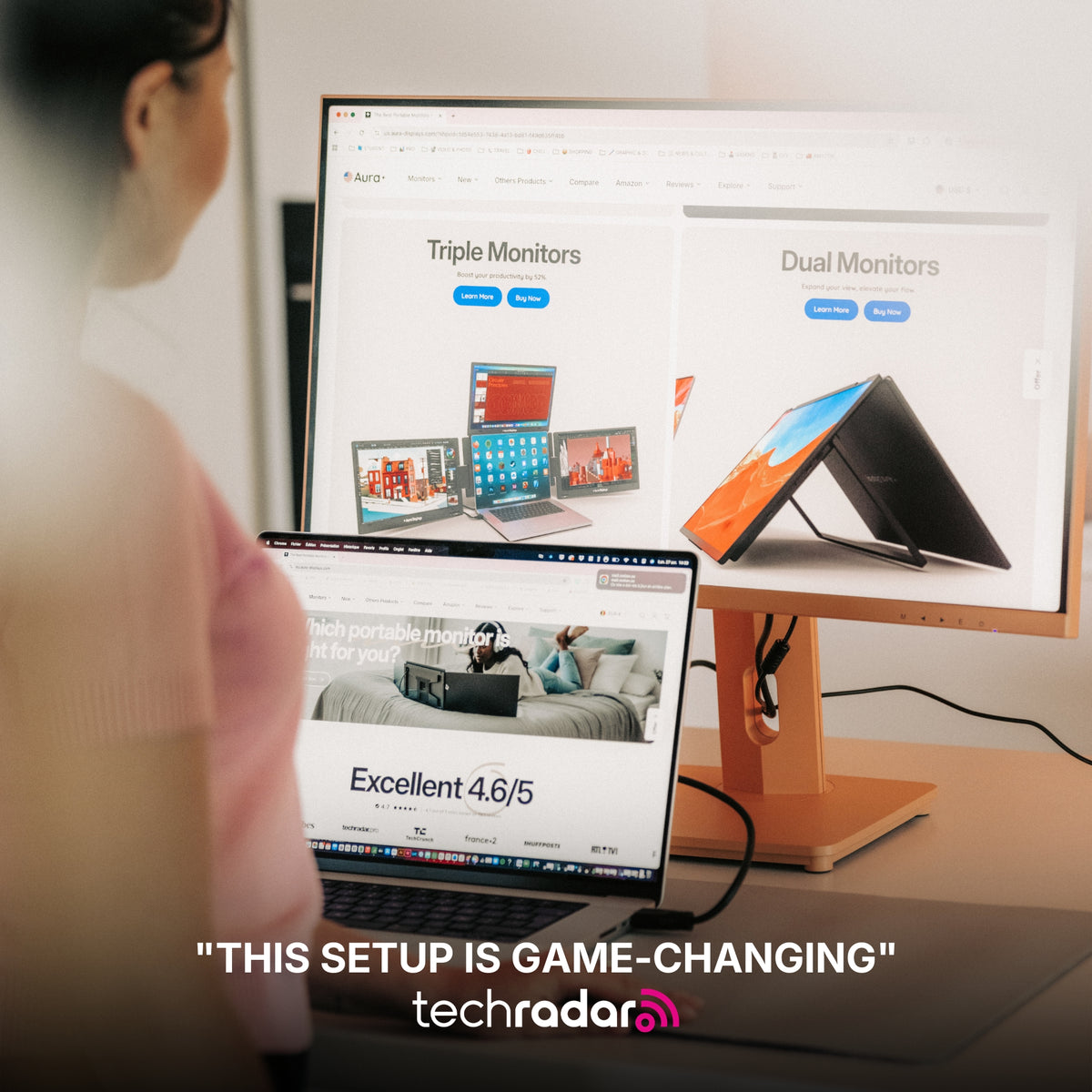
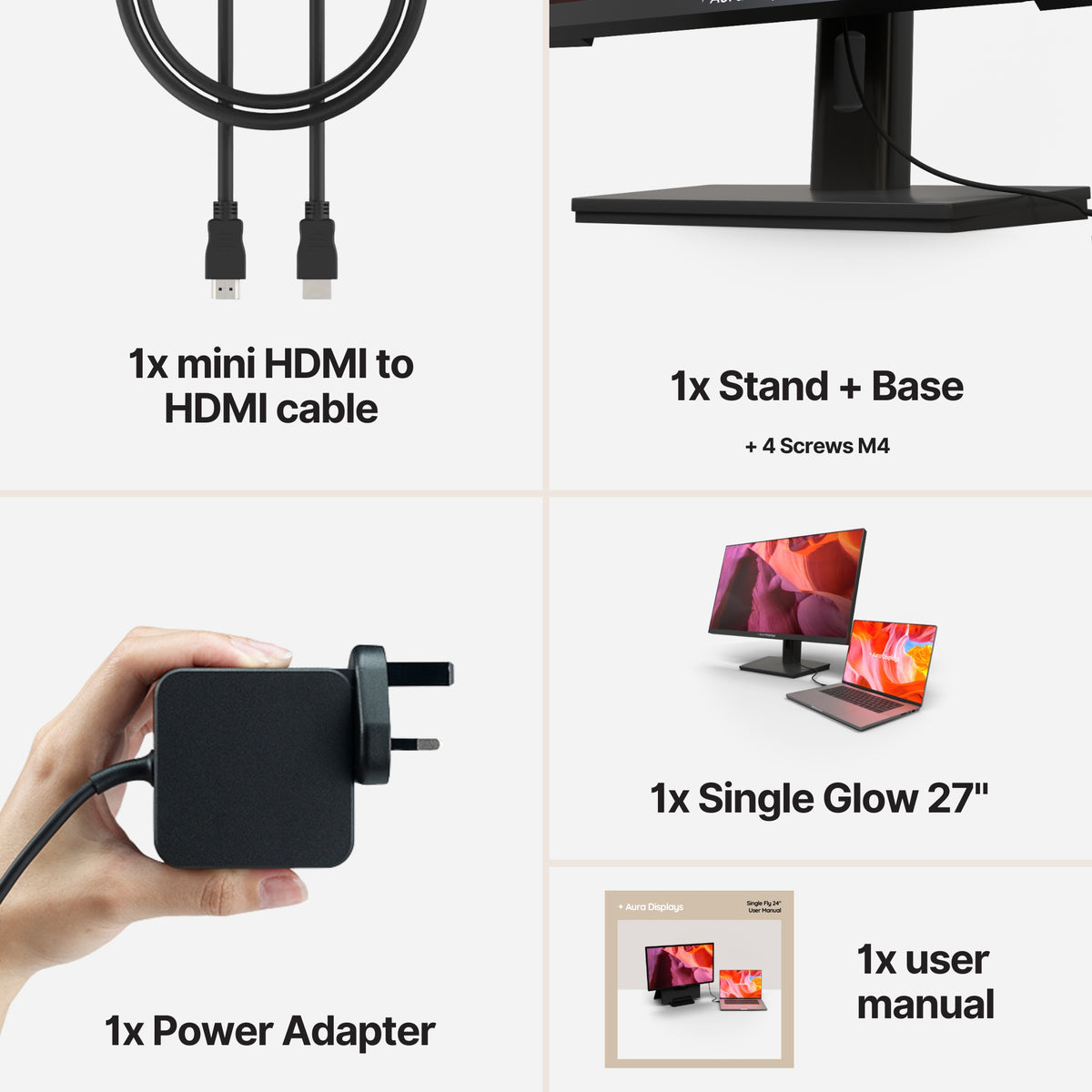
The cable. The screen we recommend below takes DisplayPort or HDMI, not USB-C. Use your laptop's HDMI port or a USB-C to DisplayPort cable. An older HDMI 1.4 port caps 4K at 30Hz; DisplayPort or HDMI 2.0 fixes it.
What these screens will not do for you
They will not make your model faster. A 4K viewport is four times the pixels of a Full HD one, drawn by the same graphics chip. On integrated graphics, orbiting a heavy Revit or Archicad model on the big screen can be slower than on the laptop's own display. Switch shadows and realistic visual styles off while you navigate and turn them back on to present.
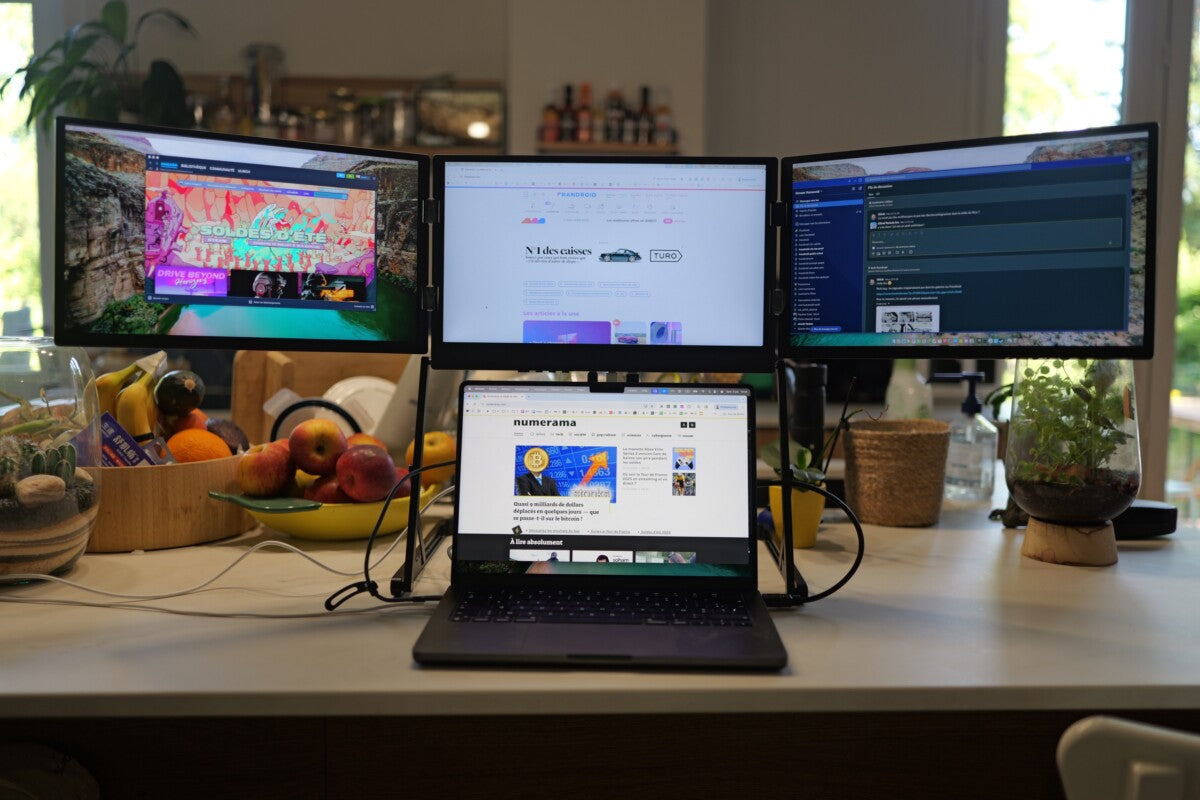
Keep the viewport off software-driven screens. Some of our portable ranges need companion software to run their extra displays, and that software composes those desktops on the same graphics hardware that is redrawing your model. Fine for palettes and PDFs. Wrong for a heavy 3D viewport, which belongs on a native DisplayPort or HDMI connection.
They will not judge a render. 300 nits and no calibration report. Model and compose here; judge material colour on a display you have profiled, or on paper.
The setup we recommend, and the cheaper one
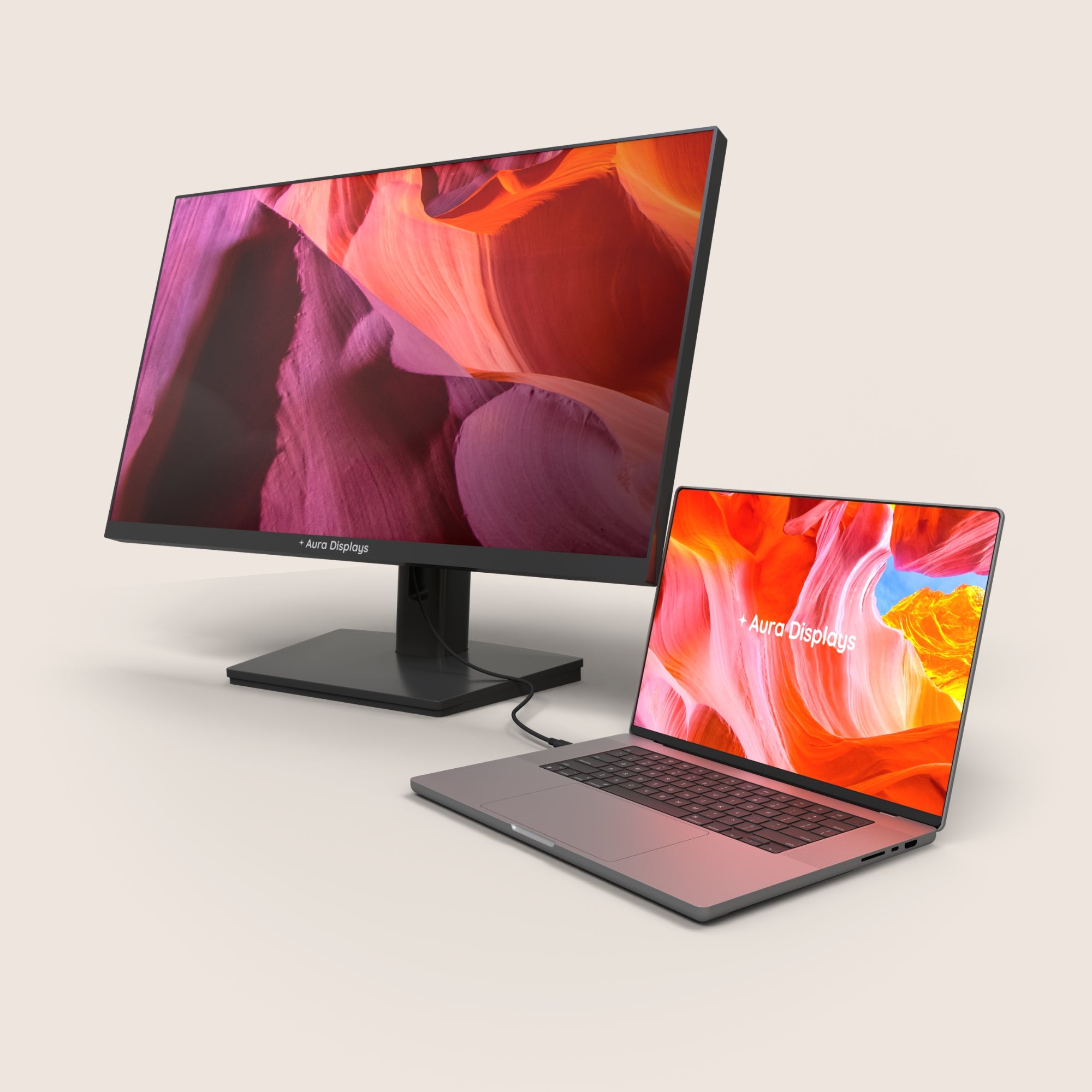
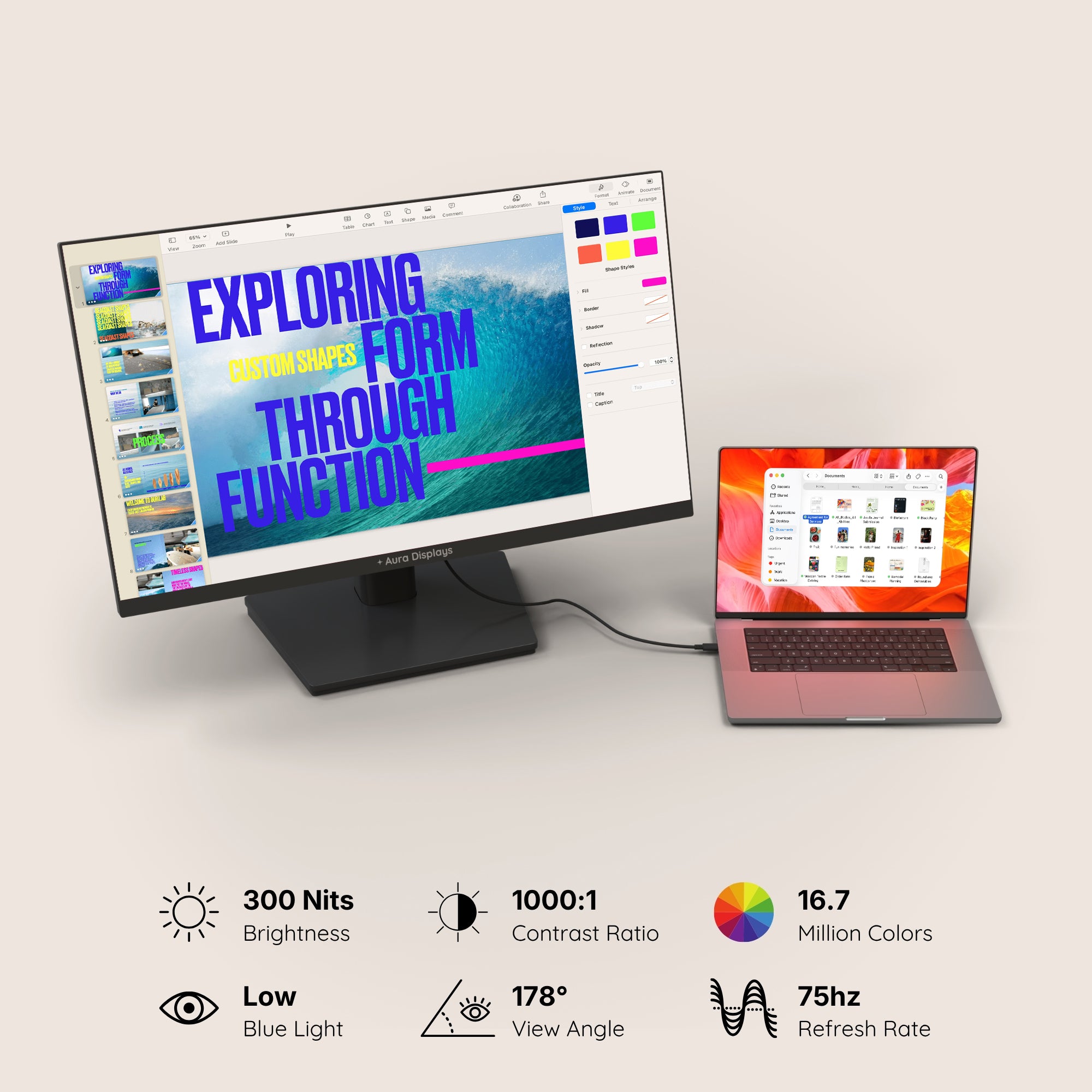
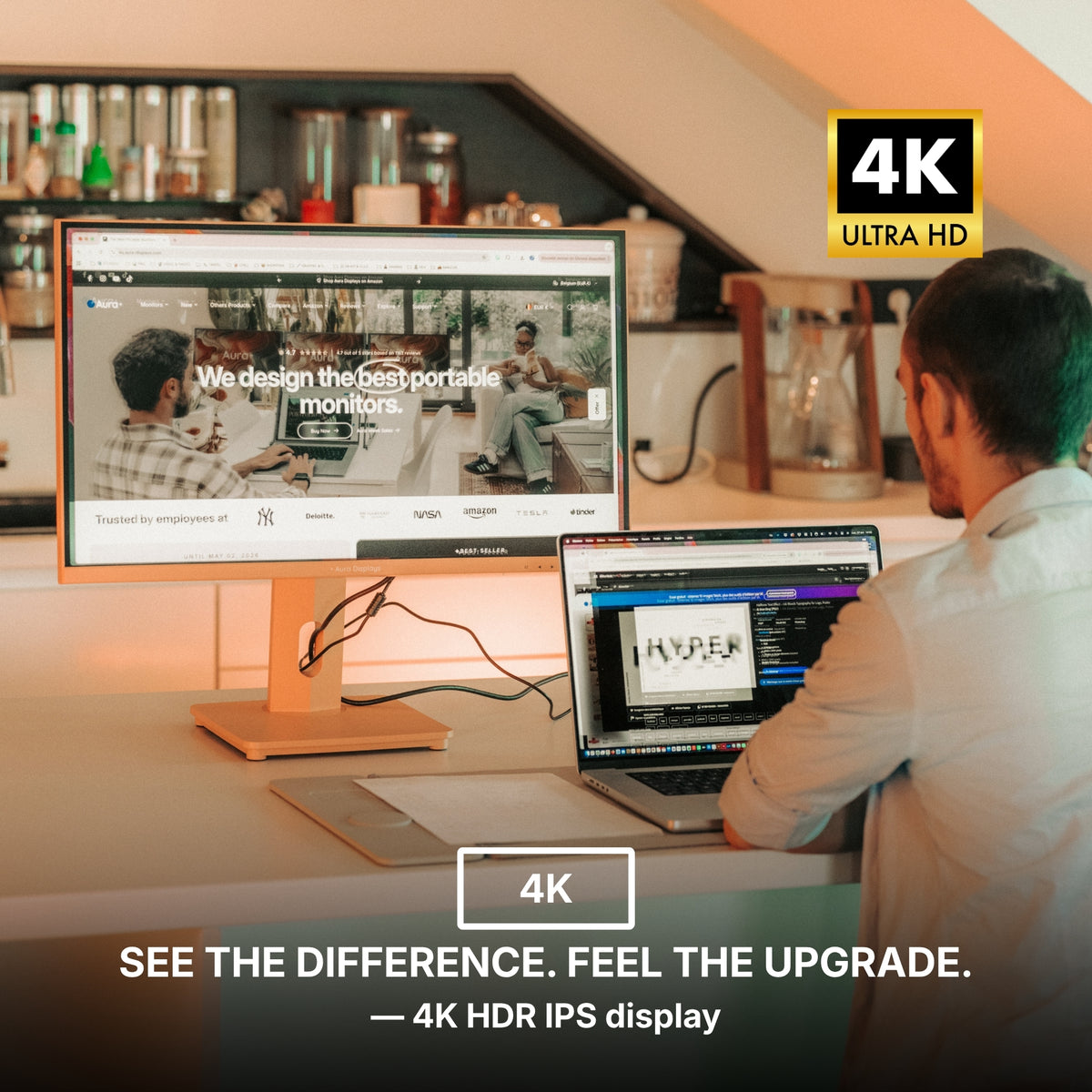
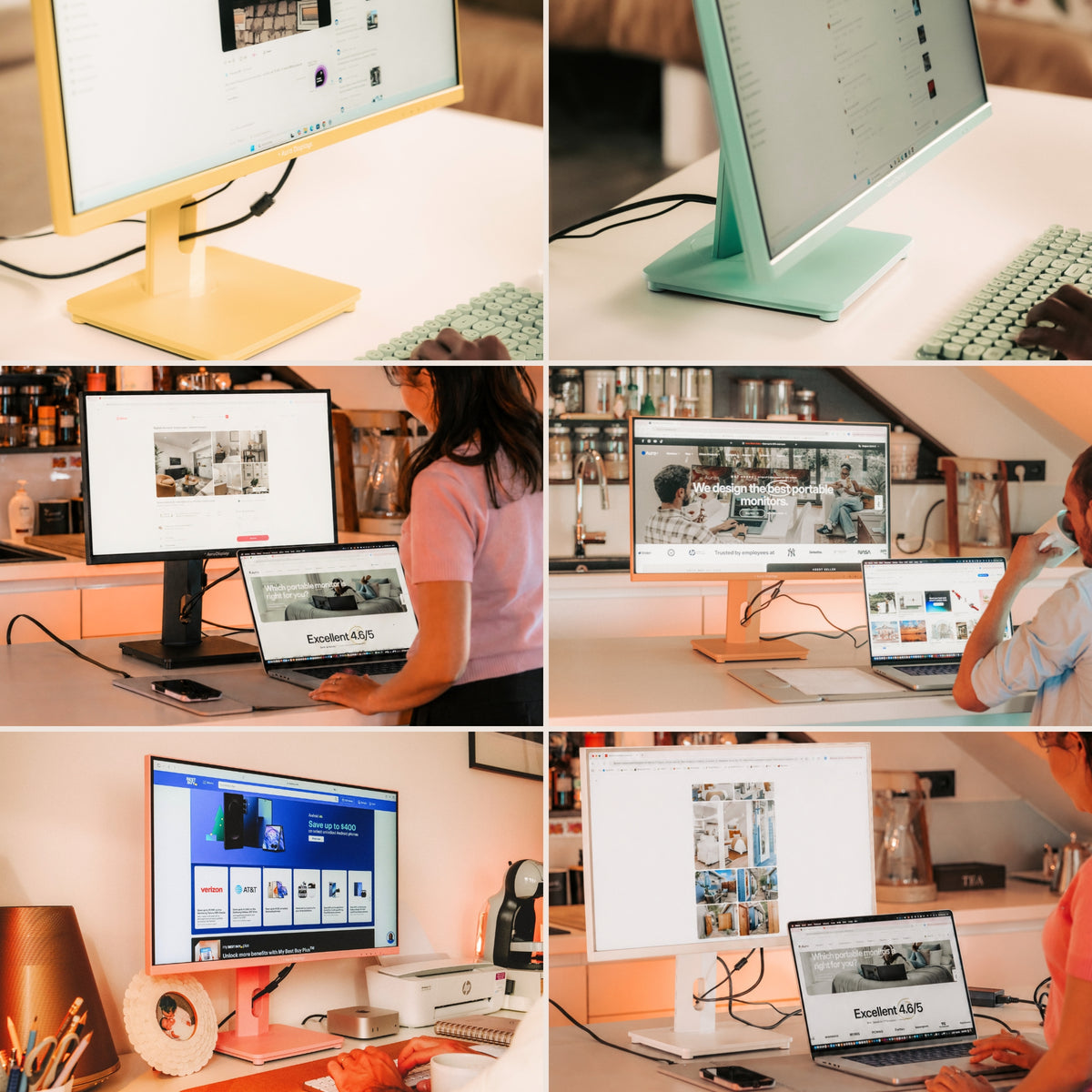
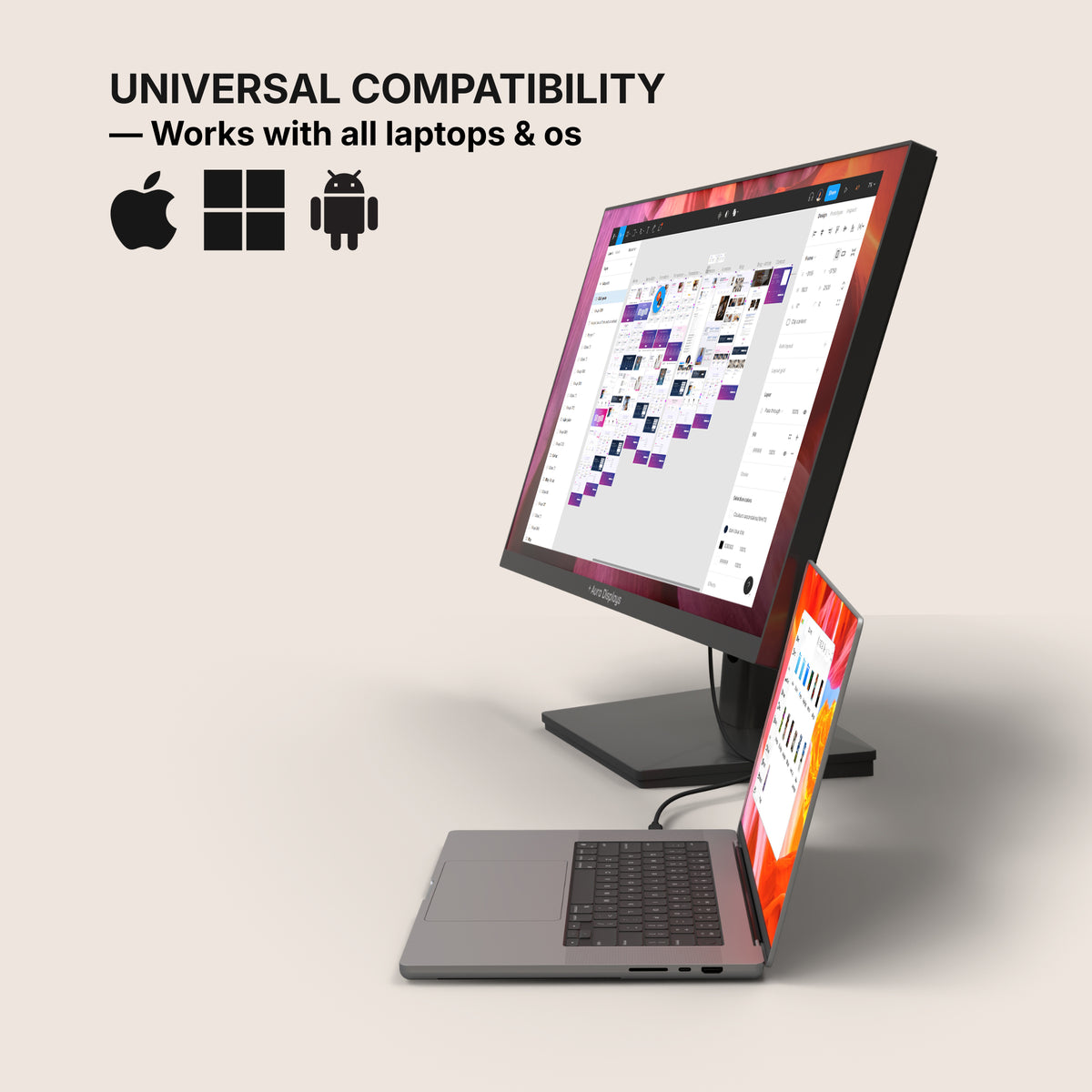
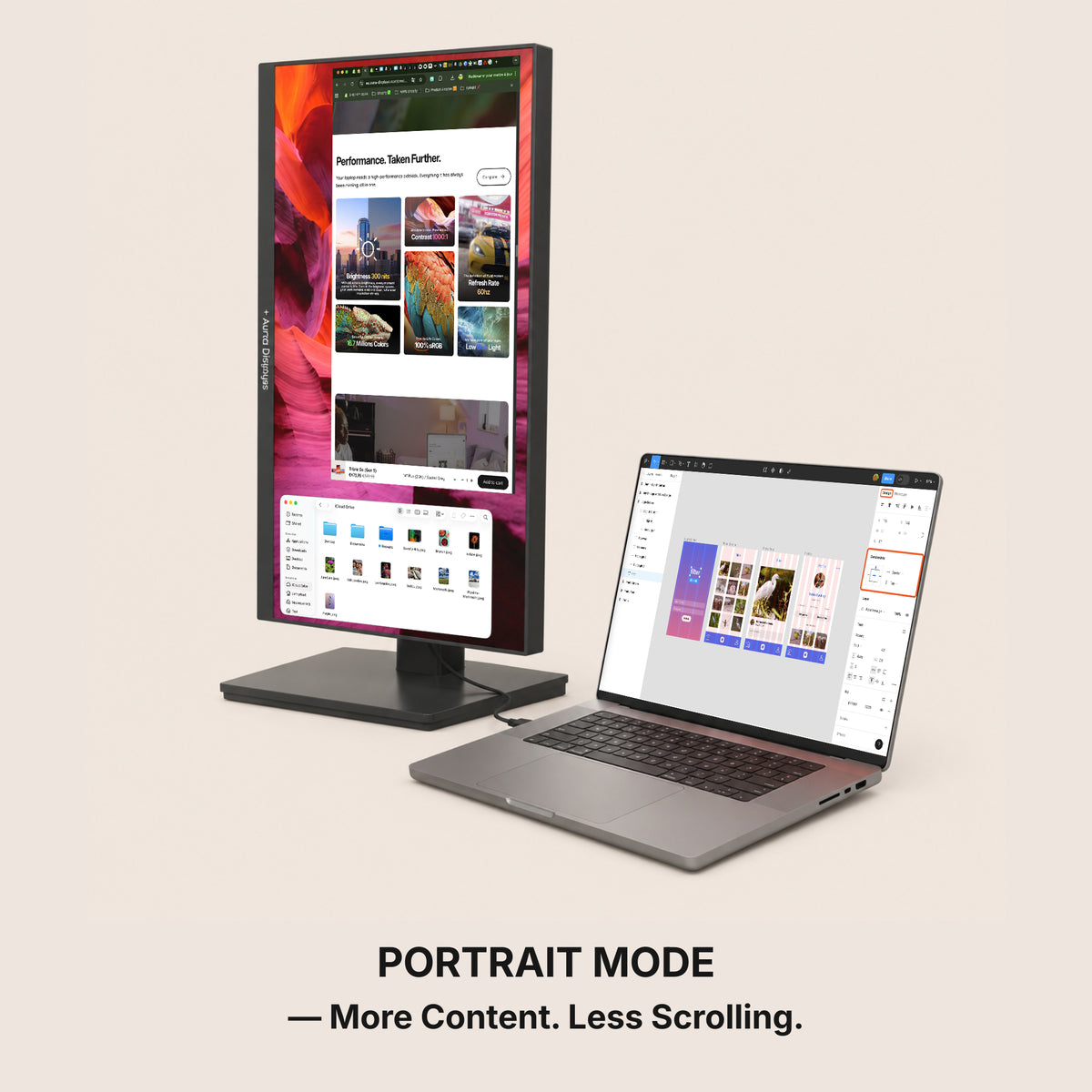
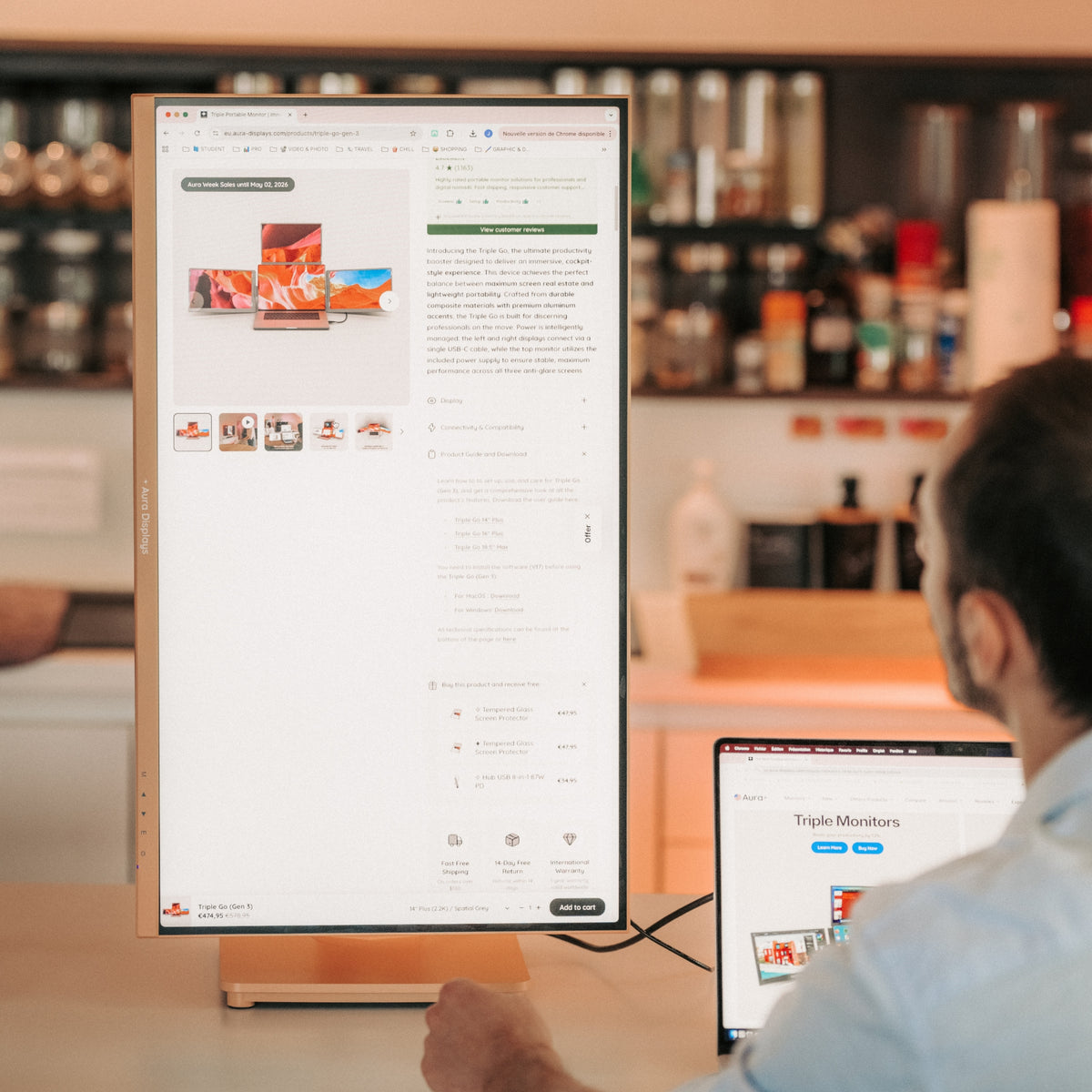
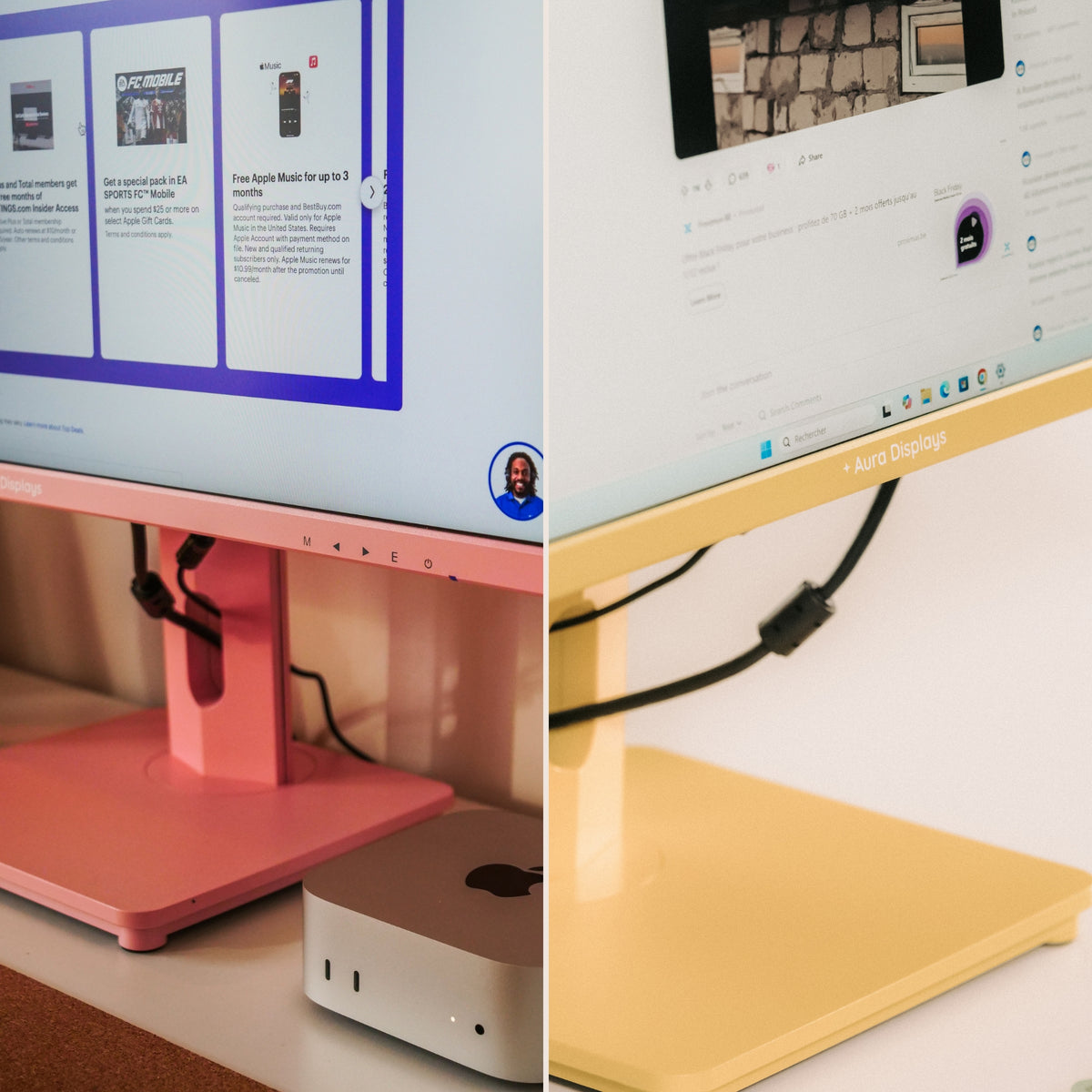
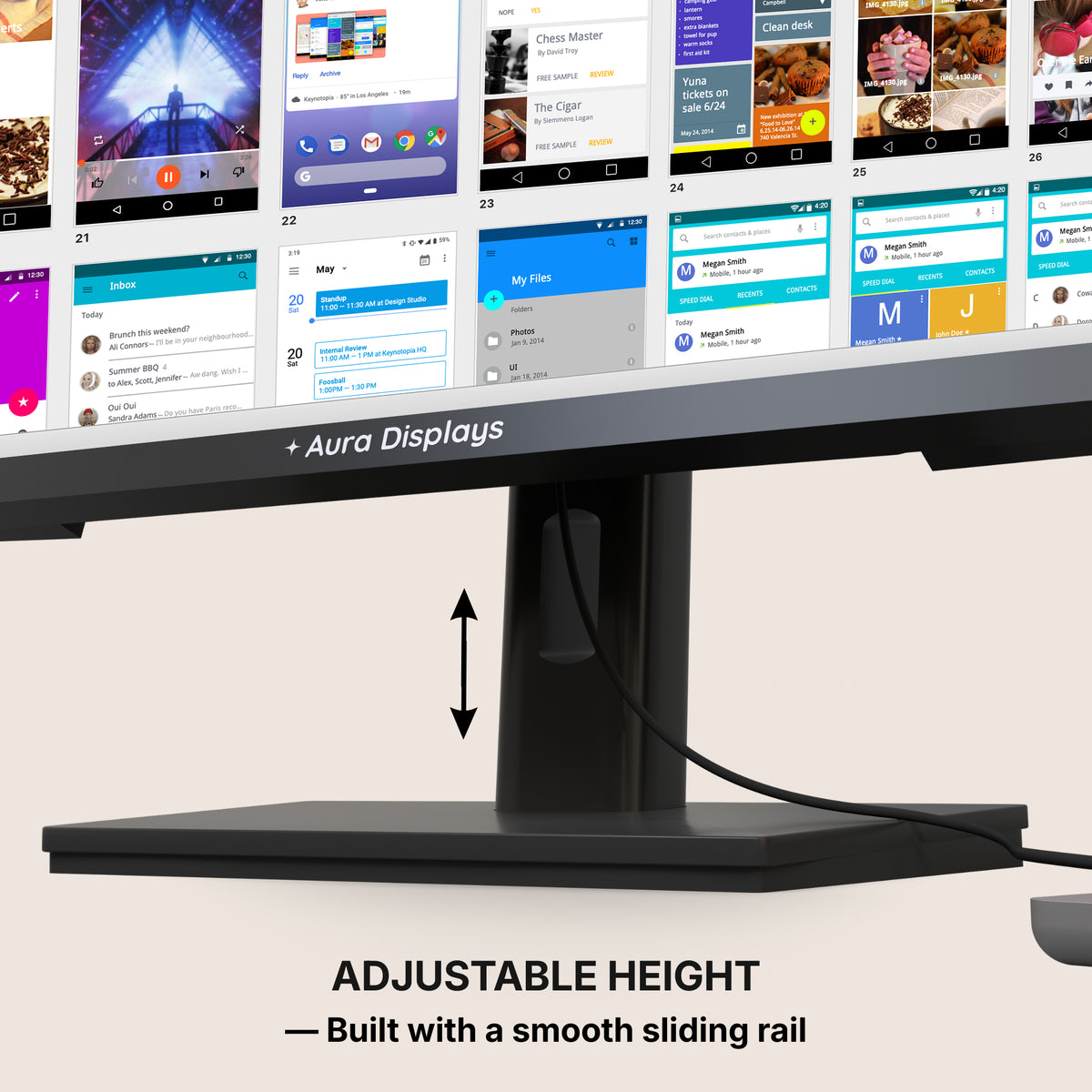
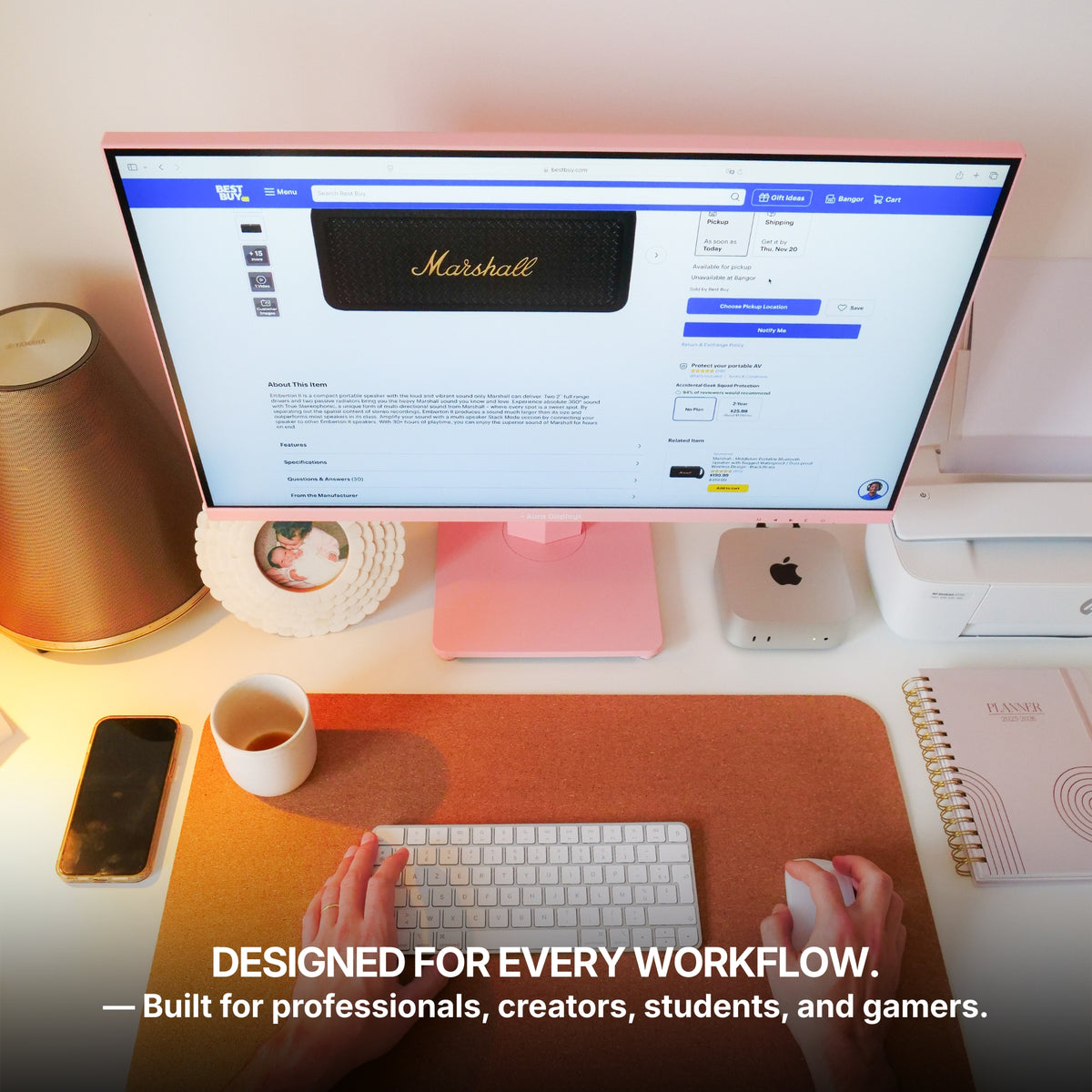
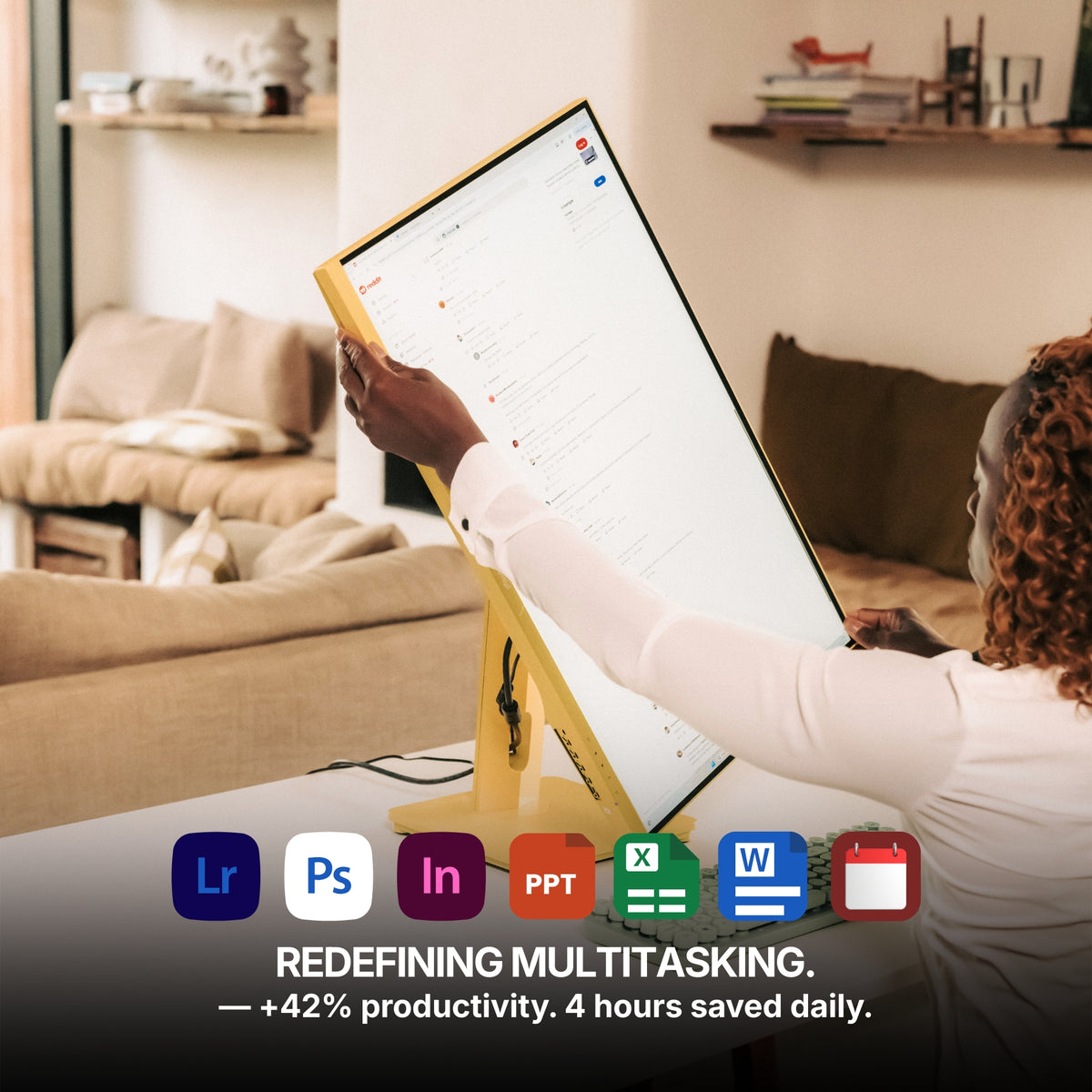
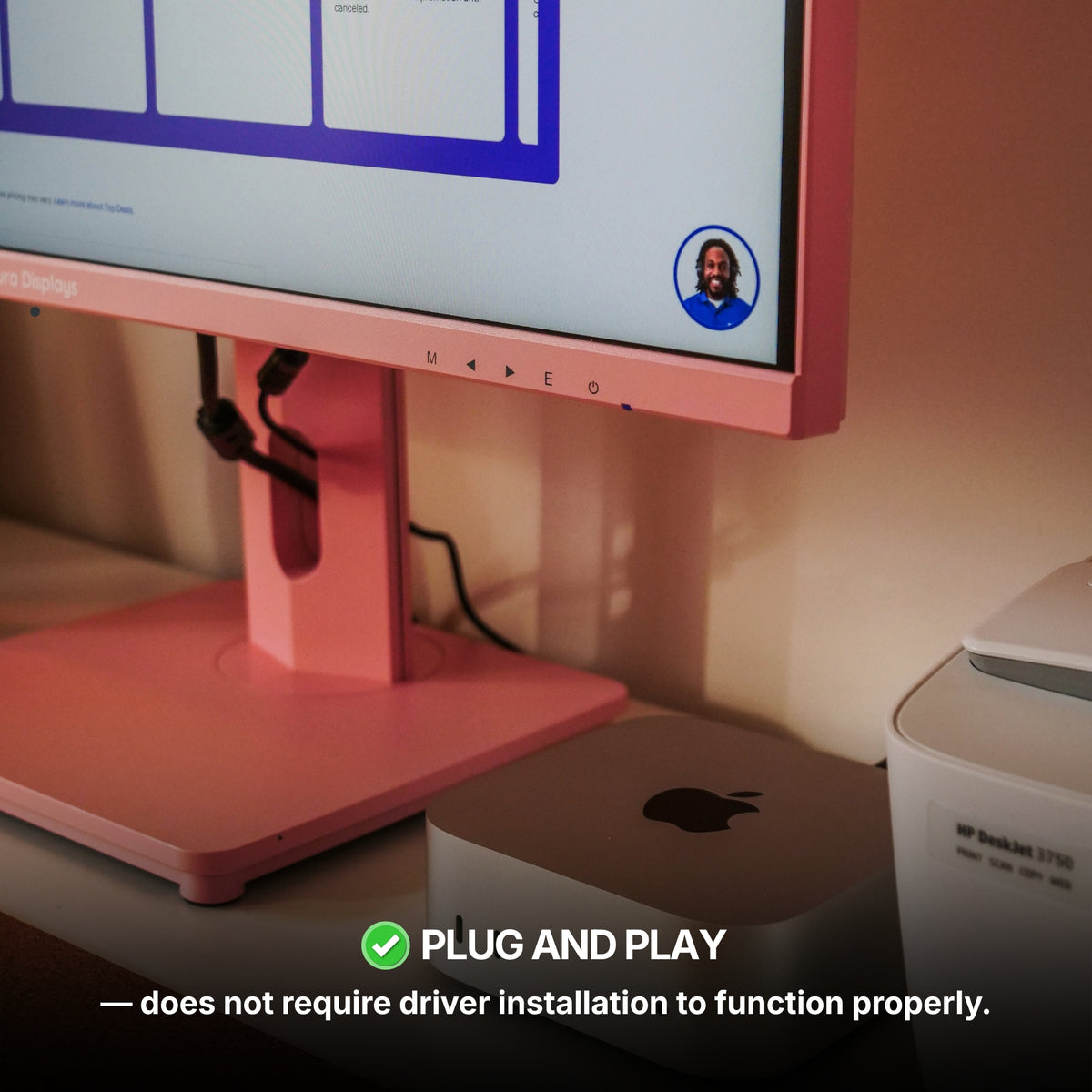
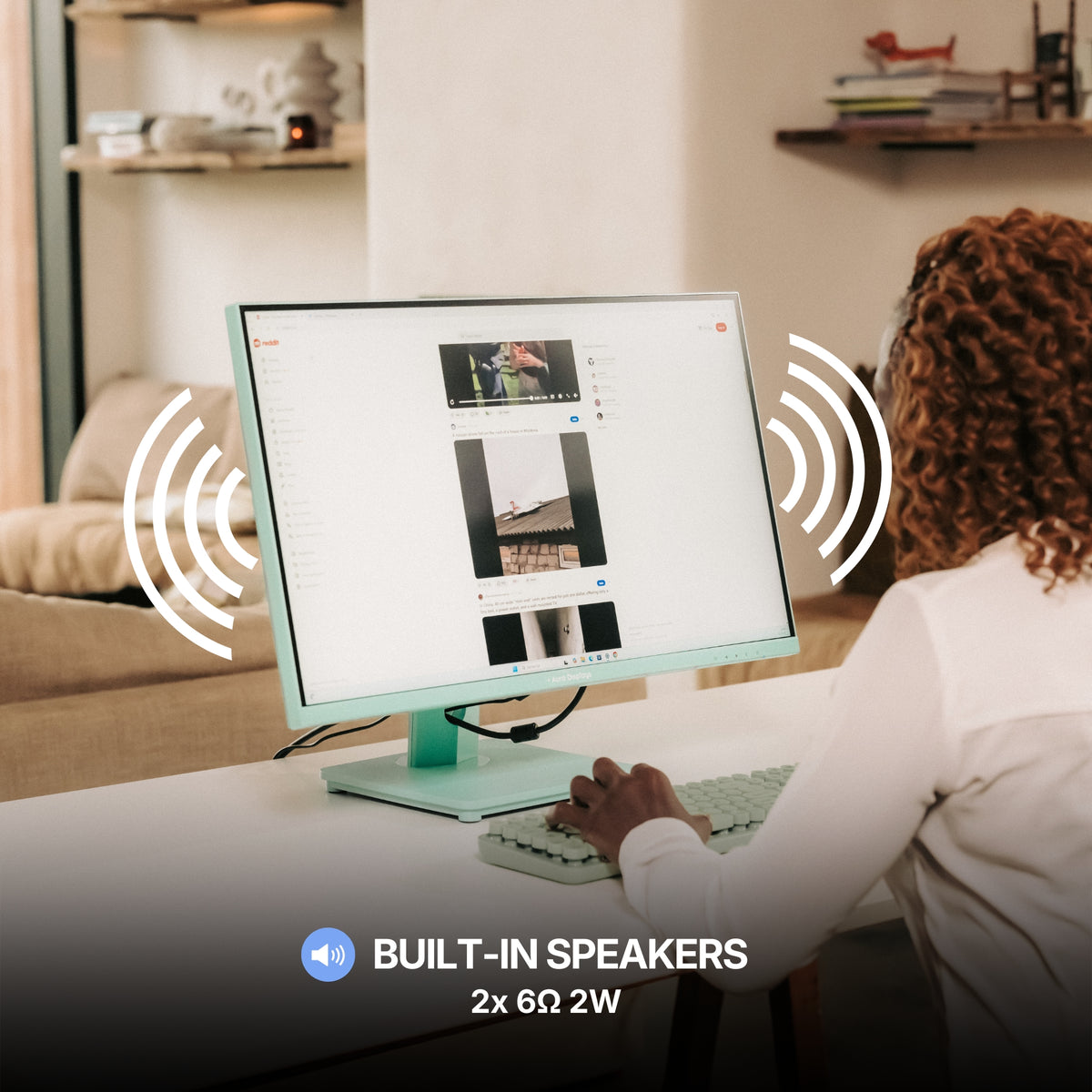
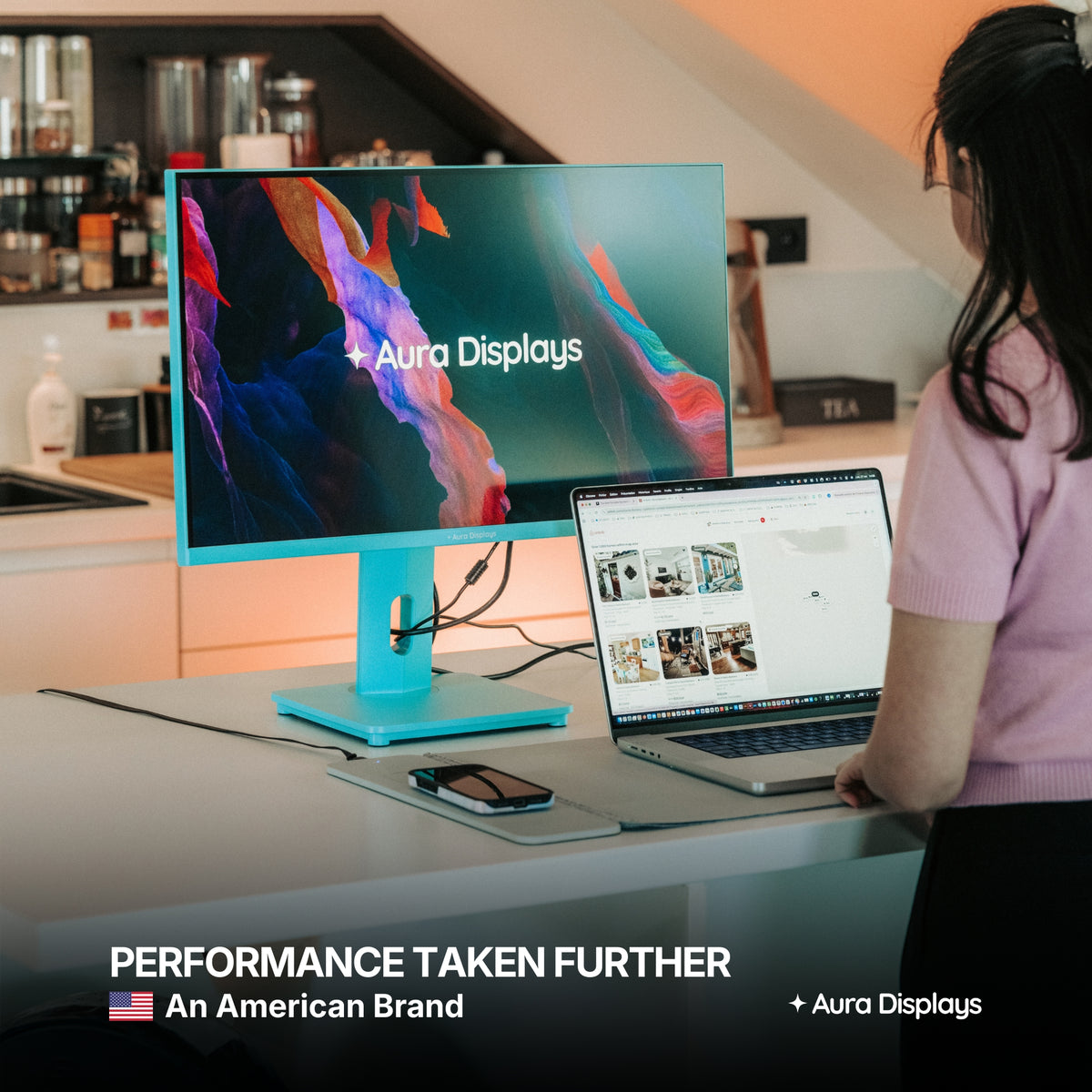
For a fixed desk, the Single Glow Infinity (Gen 1) is the one we would build around: a 27-inch 4K panel at 3840 x 2160, at $419. It is 300 nits with 1000:1 contrast, a matte IPS surface that does not throw the window back at you, and a 75Hz refresh rate. It connects over DisplayPort or HDMI and needs no software, so the viewport gets a native connection. It is new enough that it has no customer reviews yet, so we are not quoting a rating. And it is a desk monitor, on mains power: it does not travel.
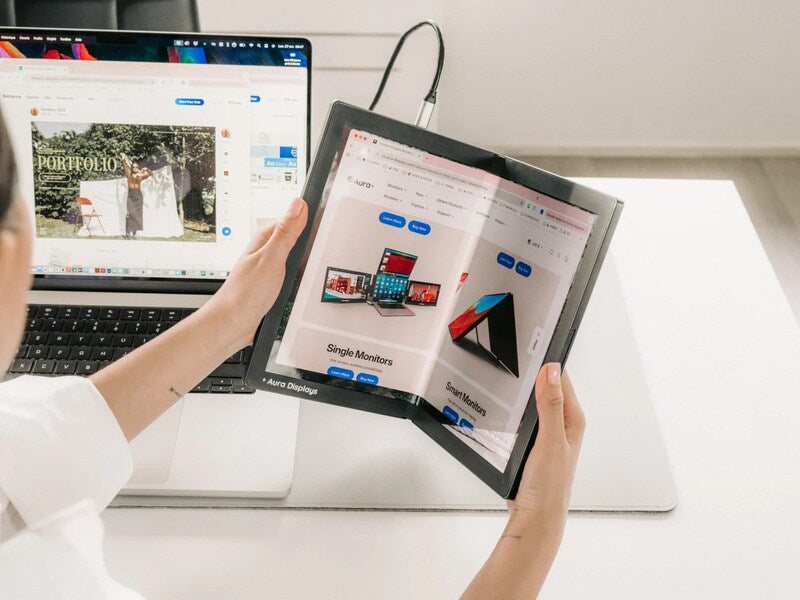
If most of your day is 2D drafting and the budget is tighter, keep the model on the laptop and add a Single Play (Gen 2) at $299 for the 15.6-inch, plug and play over USB-C, as the palette and sheet screen. It works well for plans and sections, less well for heavy 3D.
Why we would not go bigger: a model needs one large native screen, not three software-driven ones competing with it for the graphics chip. If you want a third surface for reference sheets, add a plug-and-play portable panel beside the 27-inch, not a triple.
















Share: