


Back-to-college spending is forecast at $103.5 billion this year, the first time the category has passed $100 billion, according to the National Retail Federation's survey with Prosper Insights & Analytics. Electronics are the number one spending category for college shoppers, and the share of college students buying them jumped this year.
Most of that money goes on the laptop. Almost none of it goes on the thing that determines whether the laptop is pleasant to work on: the desk it sits on.
The constraint nobody measures first
A typical dorm desk gives you somewhere between 90 and 120 cm of width, and often less than 60 cm of depth. A chunk of that is taken by a lamp, a water bottle and whatever the roommate has colonised. What remains is not enough for a laptop plus a 24-inch monitor plus a stand — and if it is, it is not enough to also open a textbook.
This is why the standard advice ("just get an external monitor") fails in student housing. The monitor works. The desk does not.
Measure before you buy. Take the usable width of the desk, subtract 20 cm for things you will inevitably put down, and check that number against the footprint of anything you are considering. It takes two minutes and it prevents the most common return we see.
Why an extender fits where a monitor does not
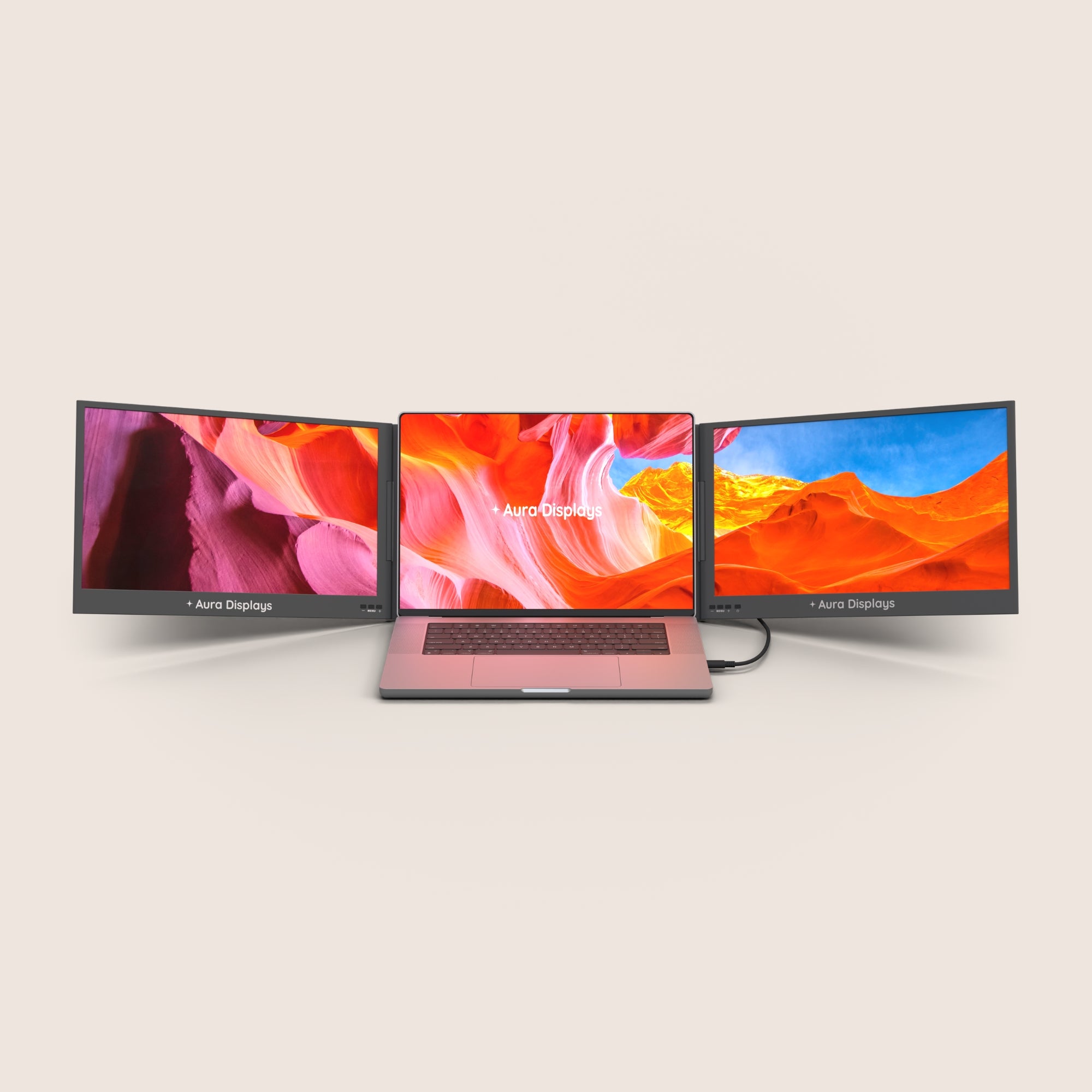
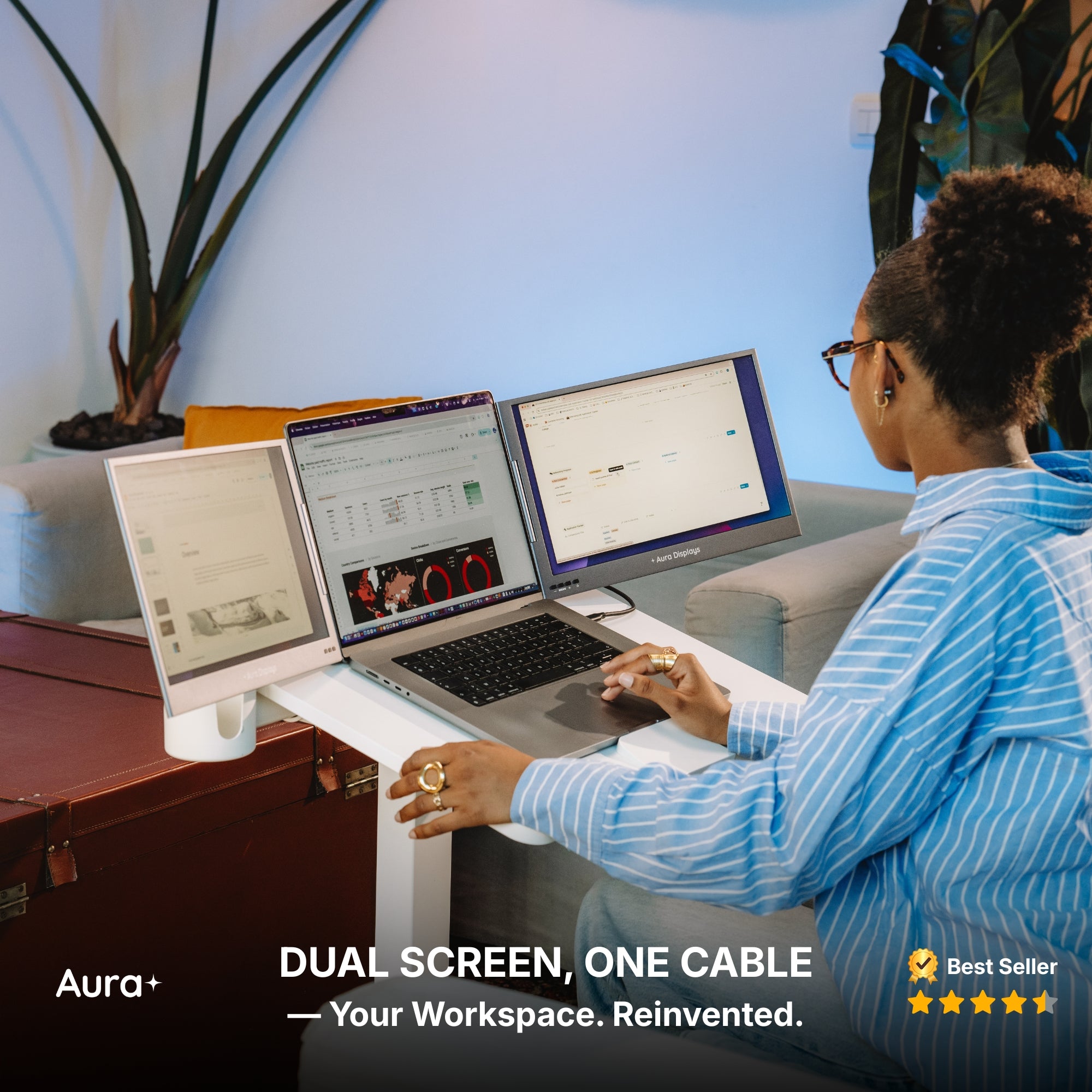
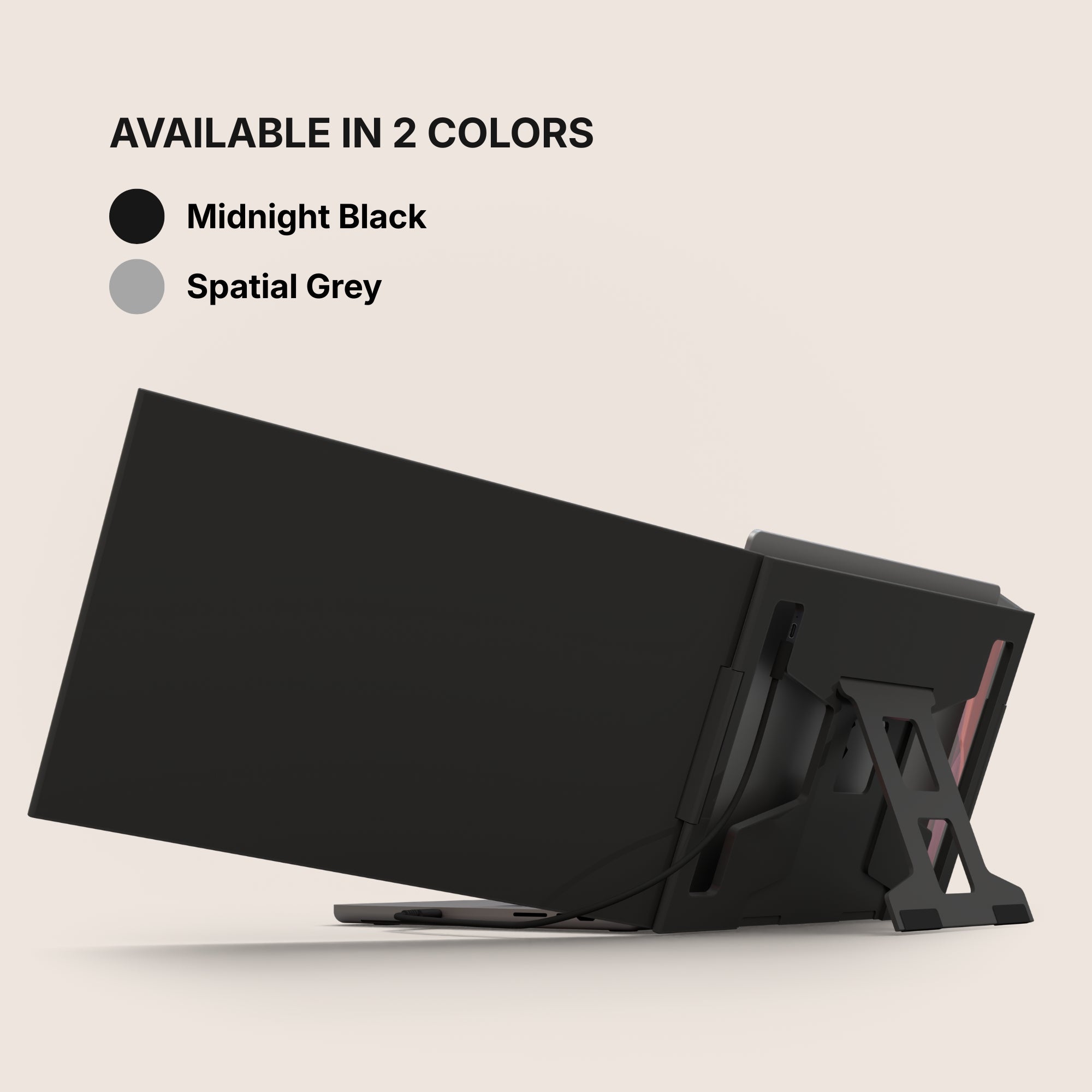
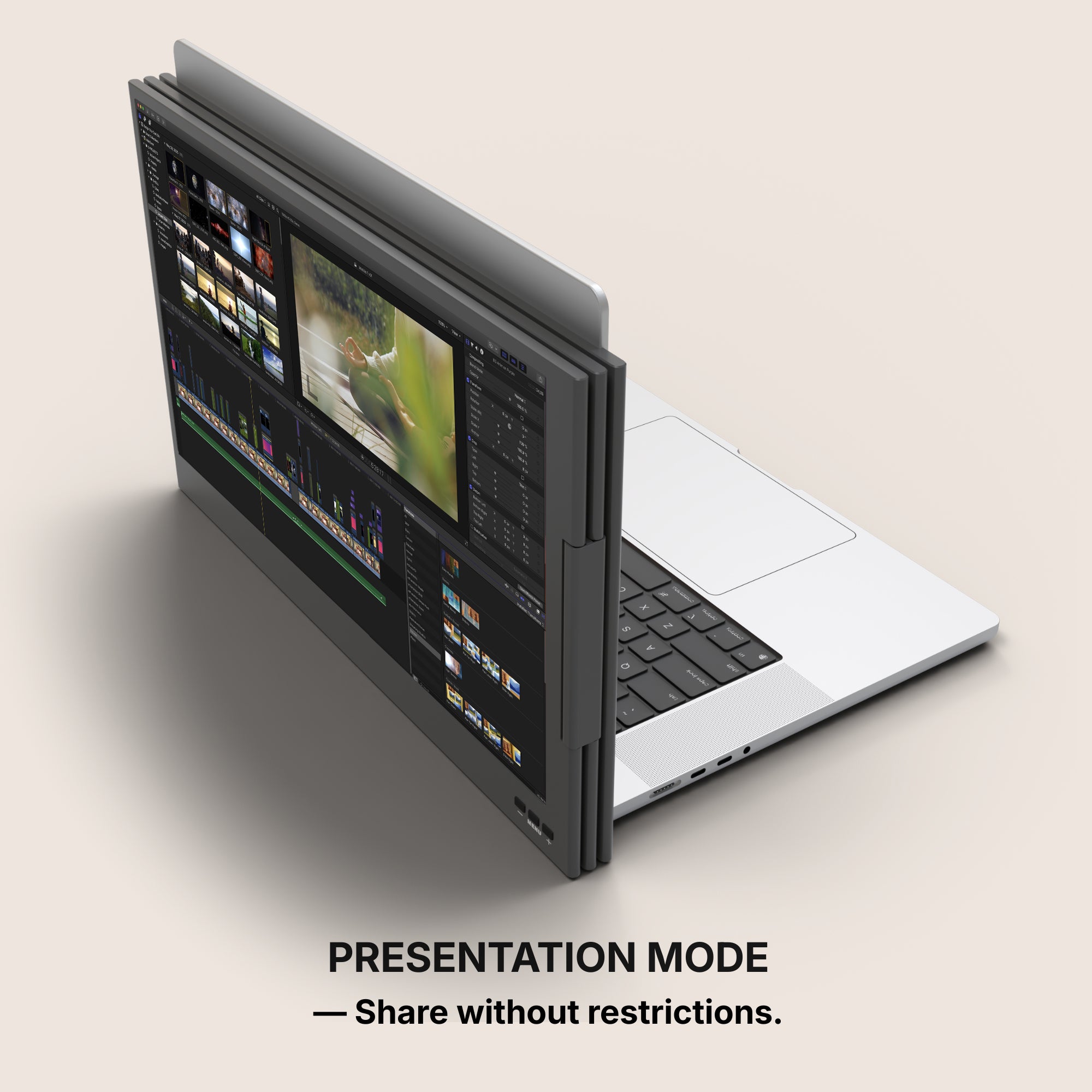
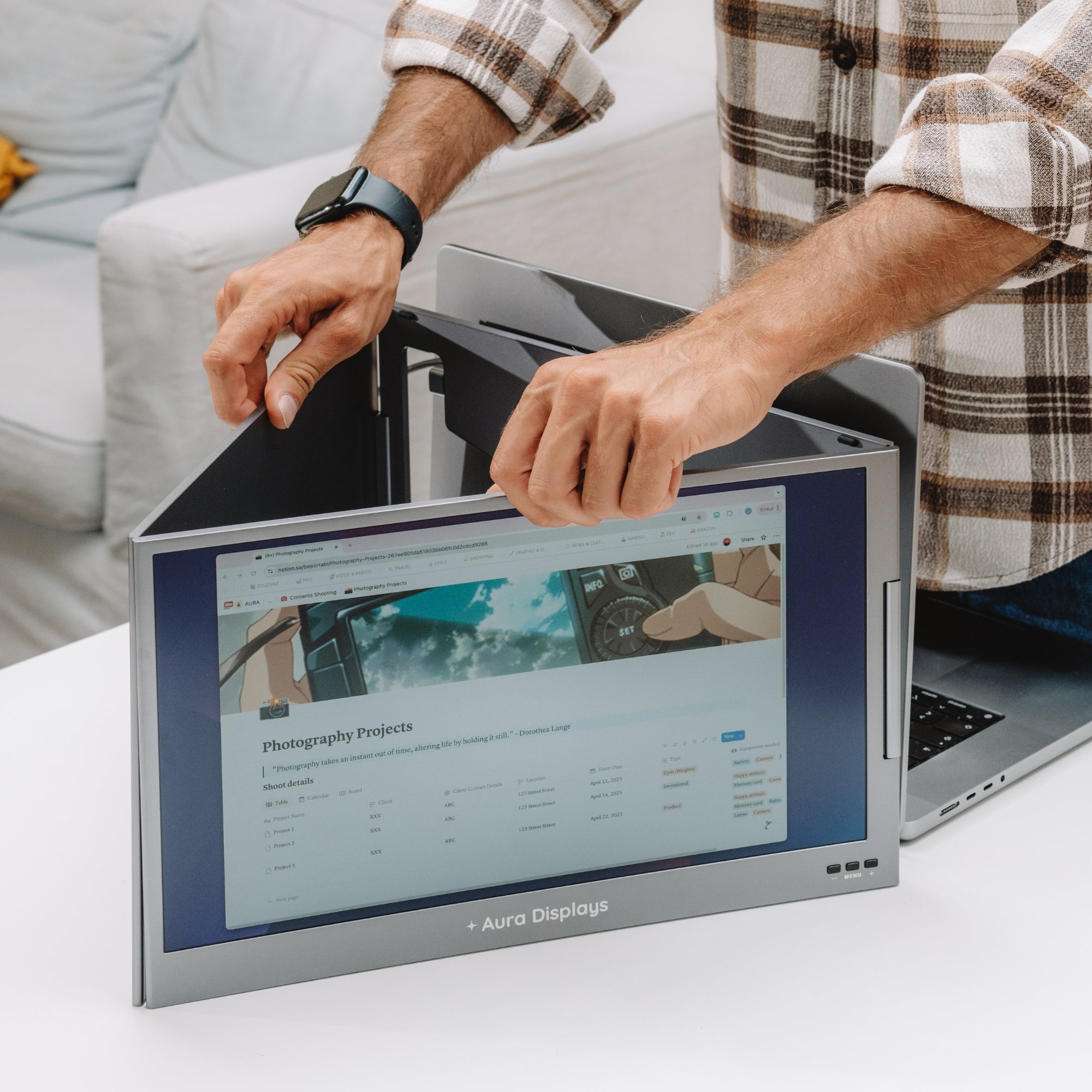
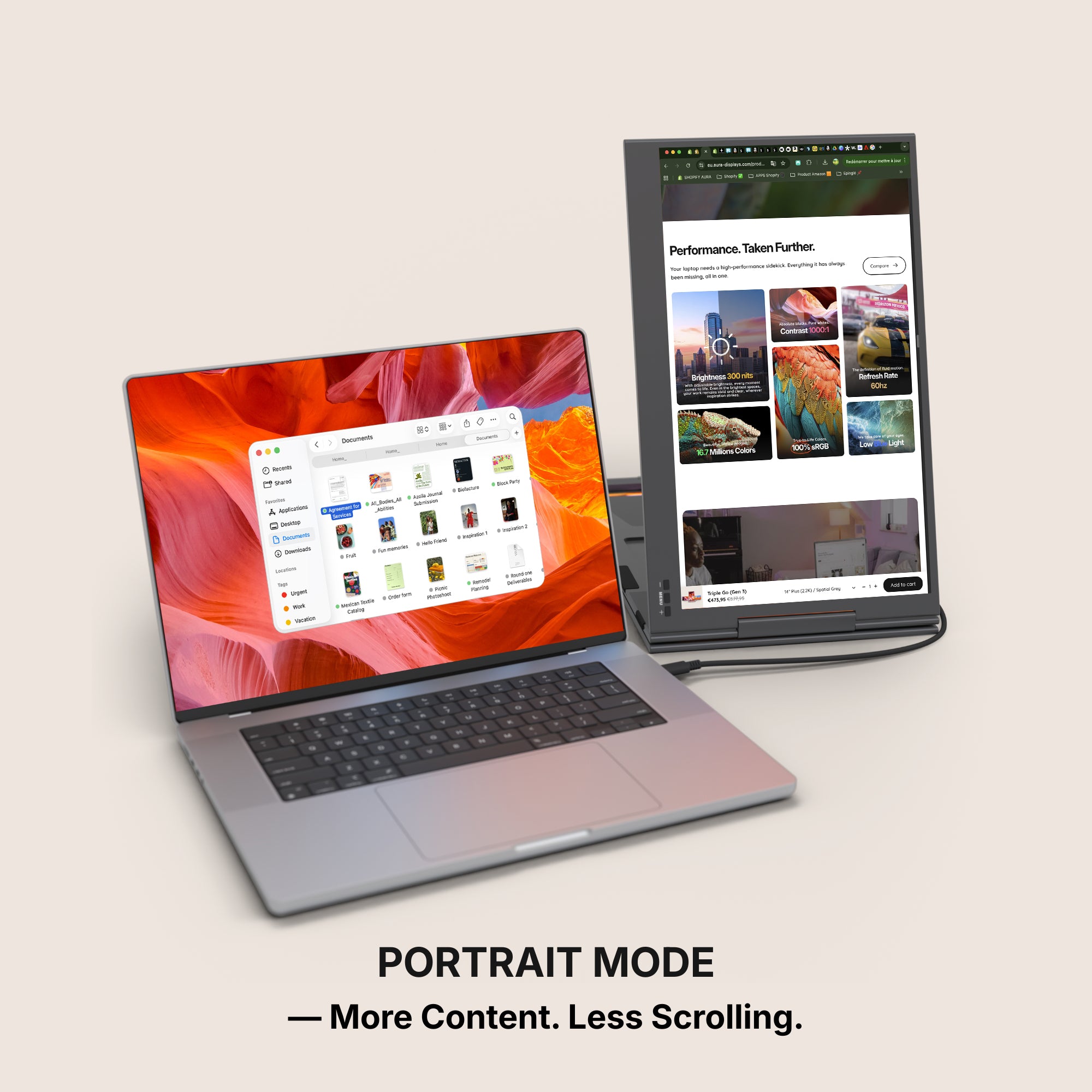
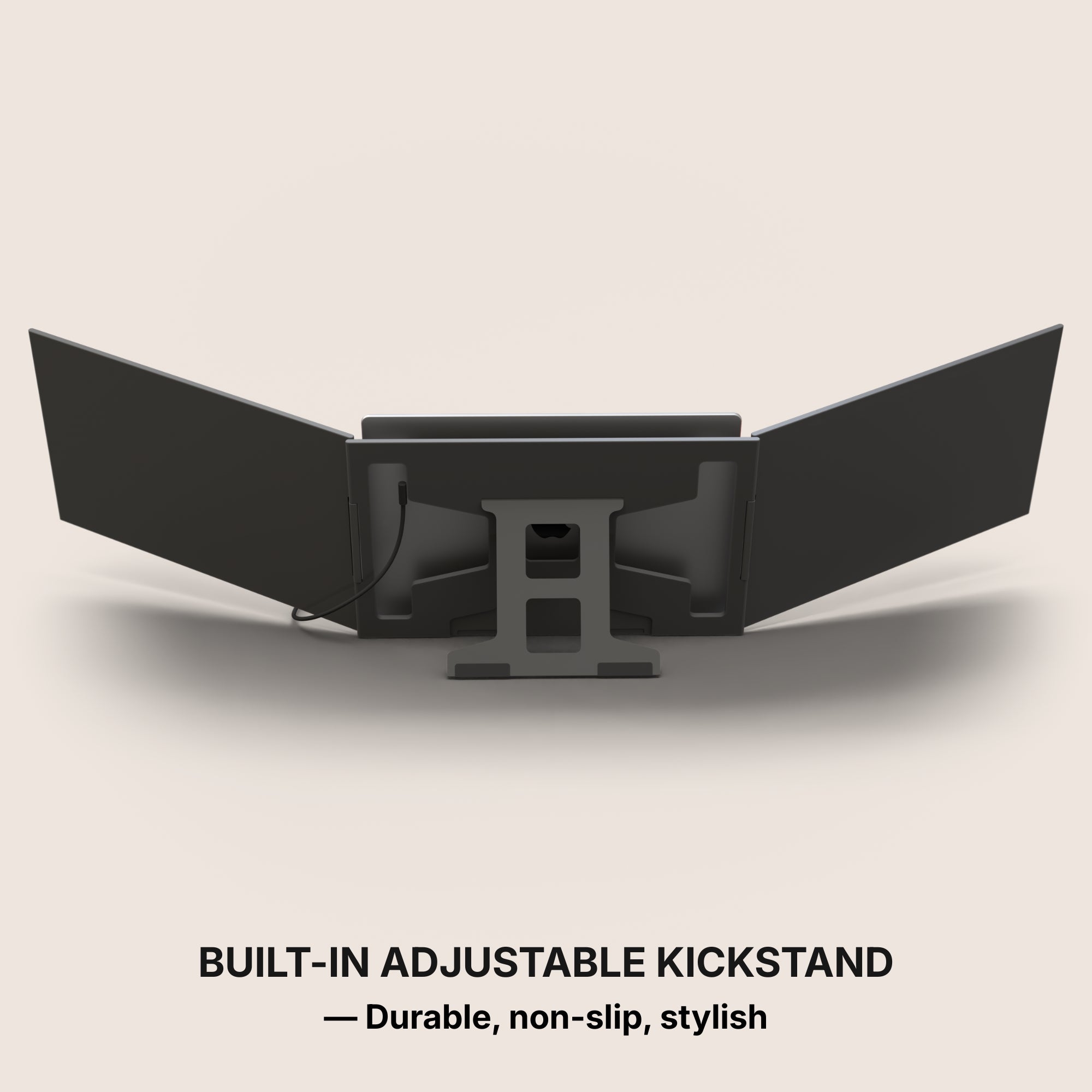
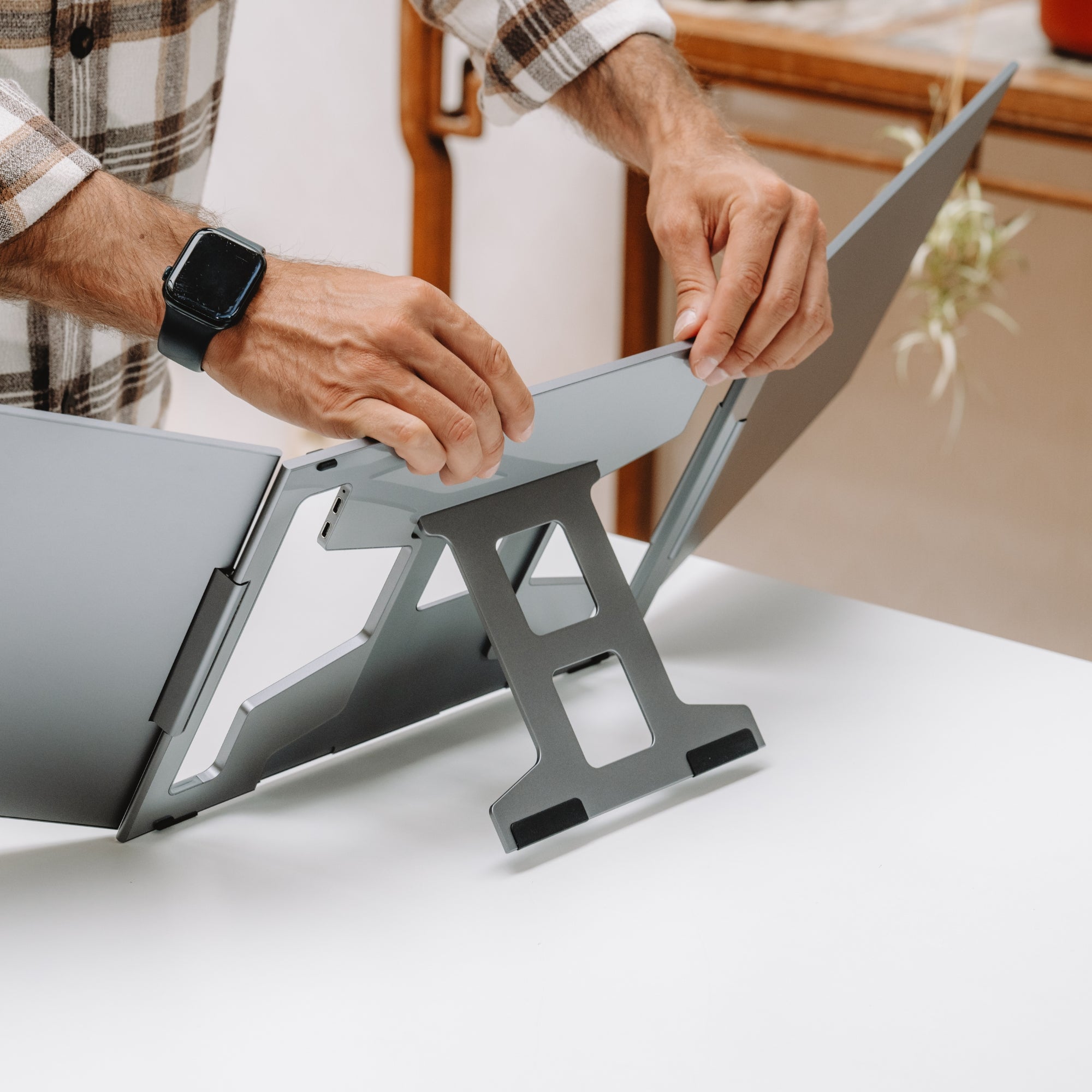
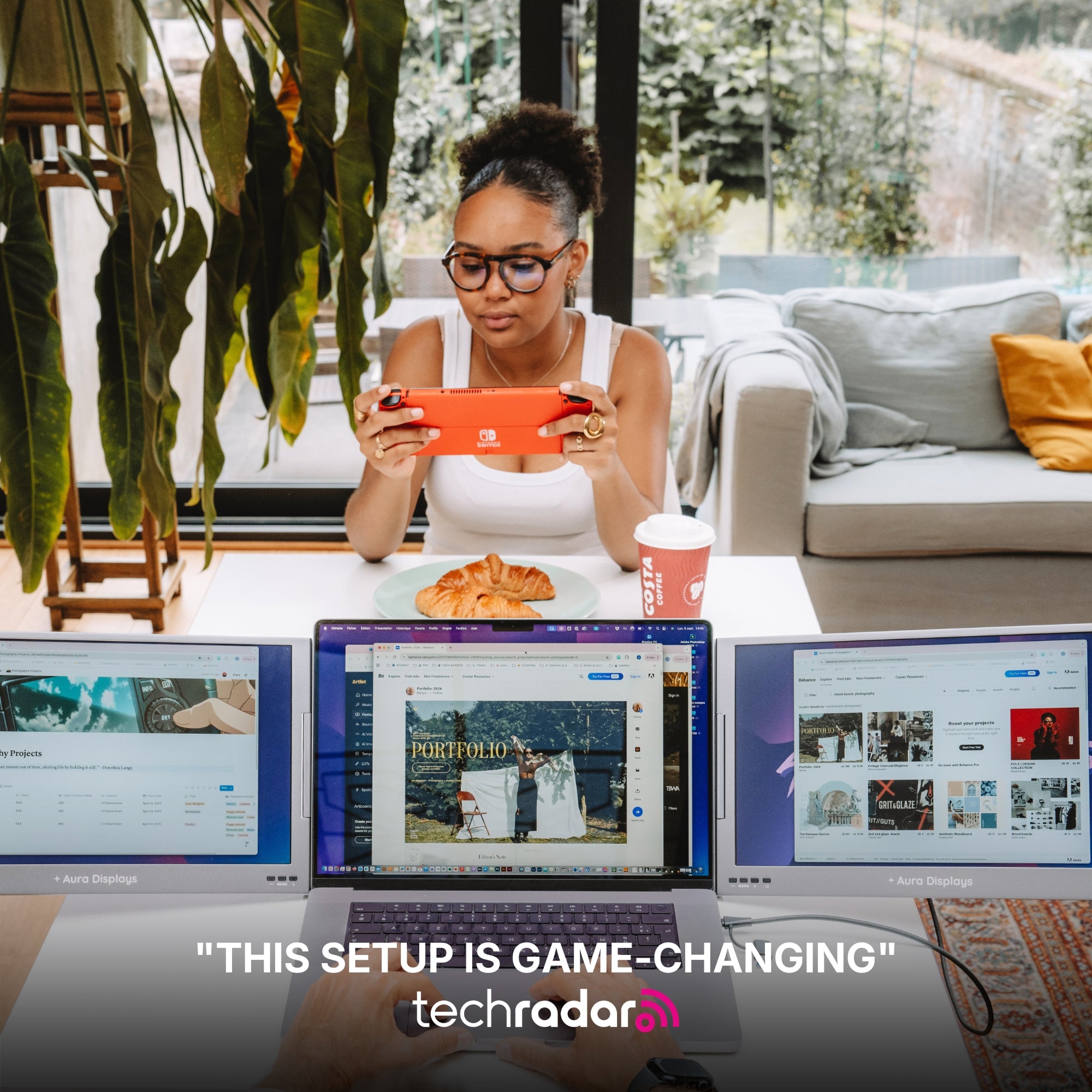
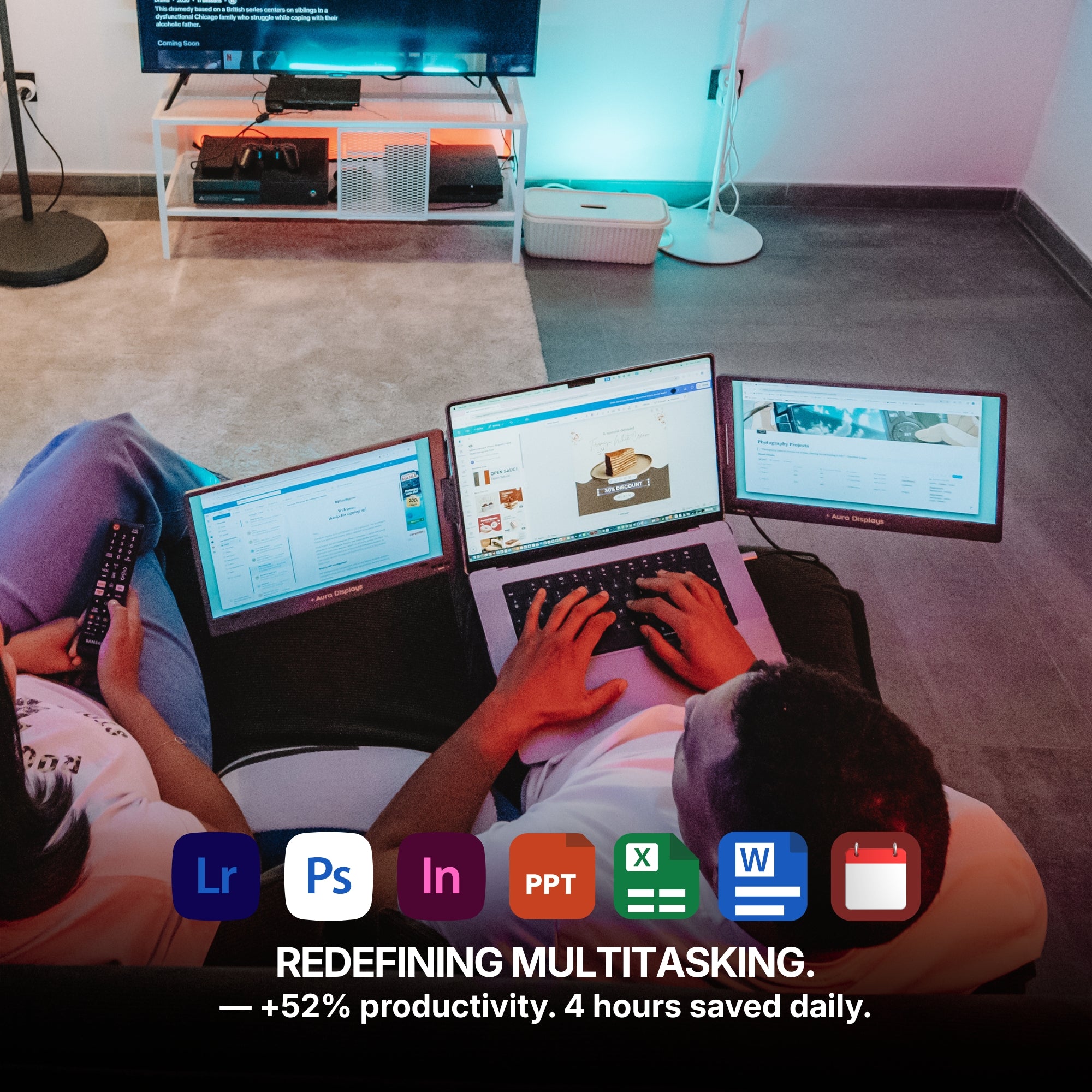
A laptop screen extender mounts on the back of the lid and unfolds sideways. Its footprint on the desk is the footprint of the laptop — no stand, no separate base, no second power brick. The screens sit in the air above the desk rather than on it.
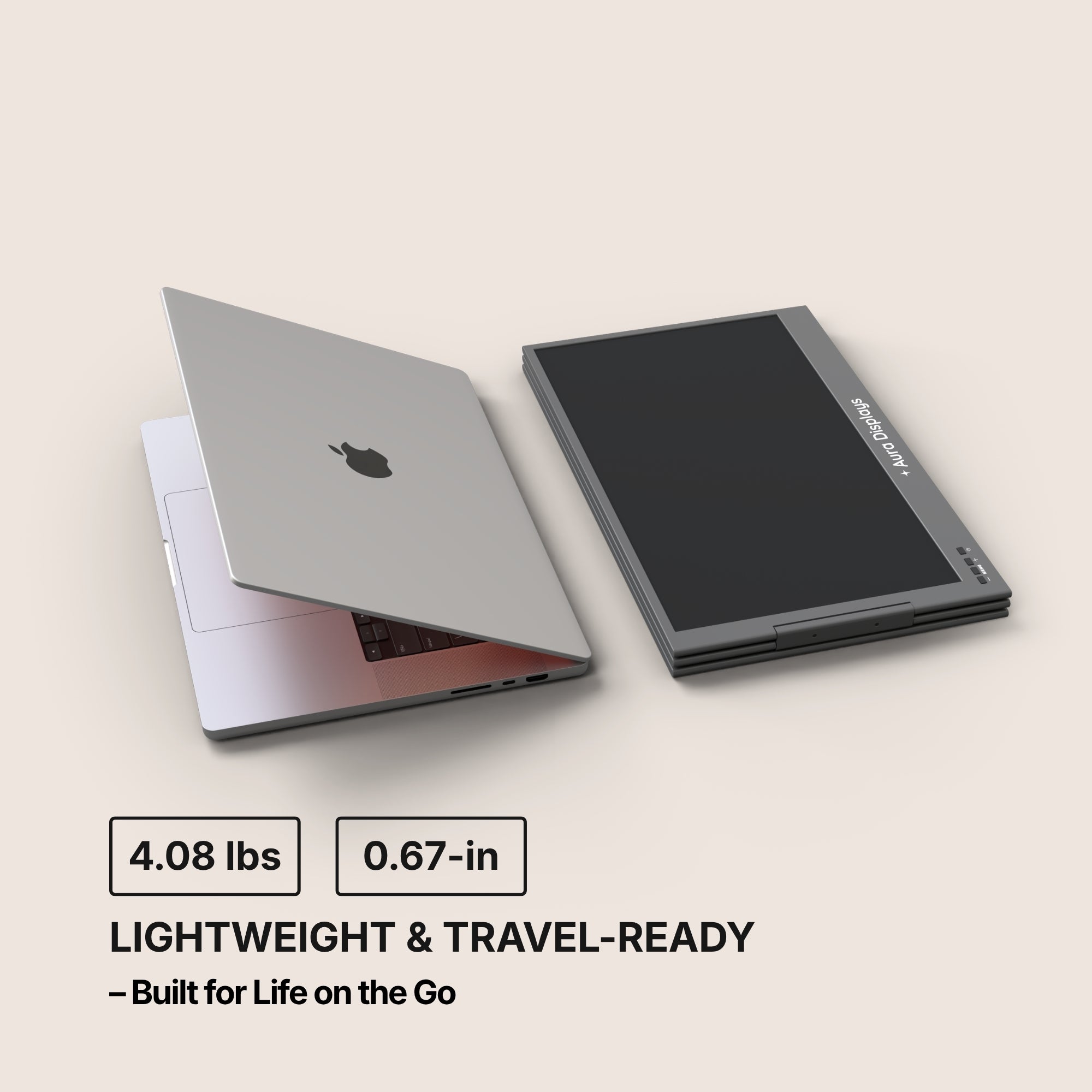
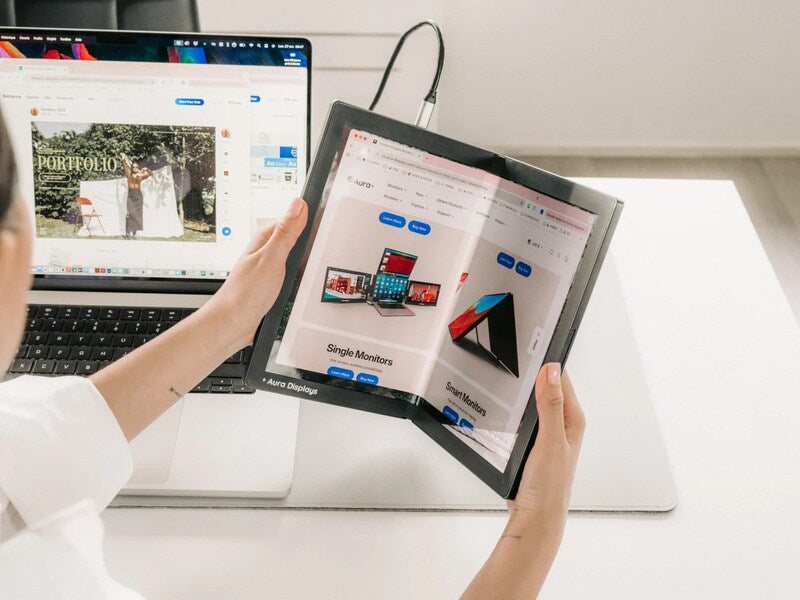
It also packs down in about ten seconds, which matters more than it sounds. Student work migrates: dorm desk in the morning, library in the afternoon, kitchen table at midnight. A setup that only exists in one room gets used in one room.
Choosing the number of screens
Match the screen count to the work, not to the budget.
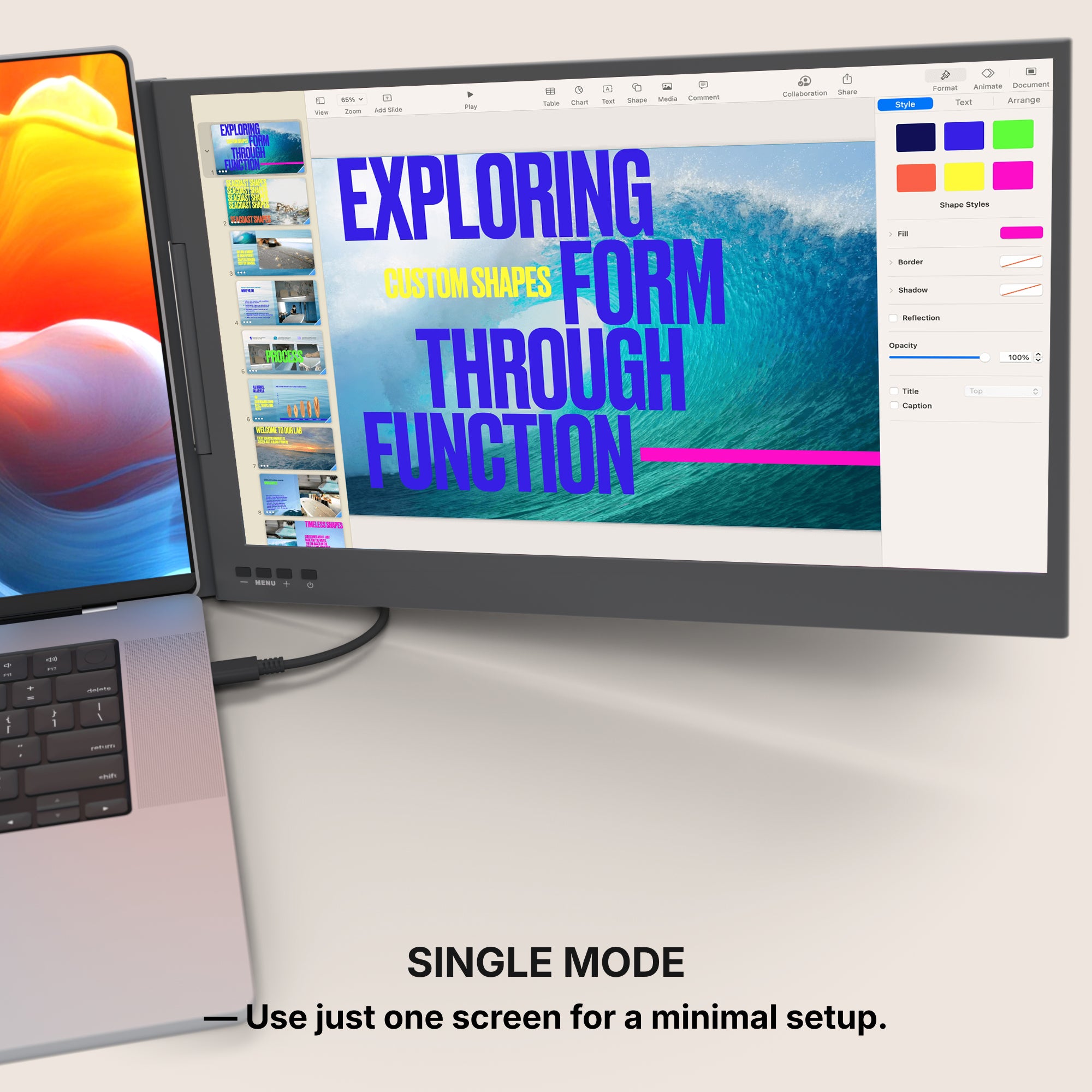
- One extra screen — essay writing, reading, lectures. Source on one side, draft on the other. This covers most humanities and social science workloads completely. See the Single Air 14" ($299) or, if you want desktop-scale area, the Single Fly 24" (from $379).
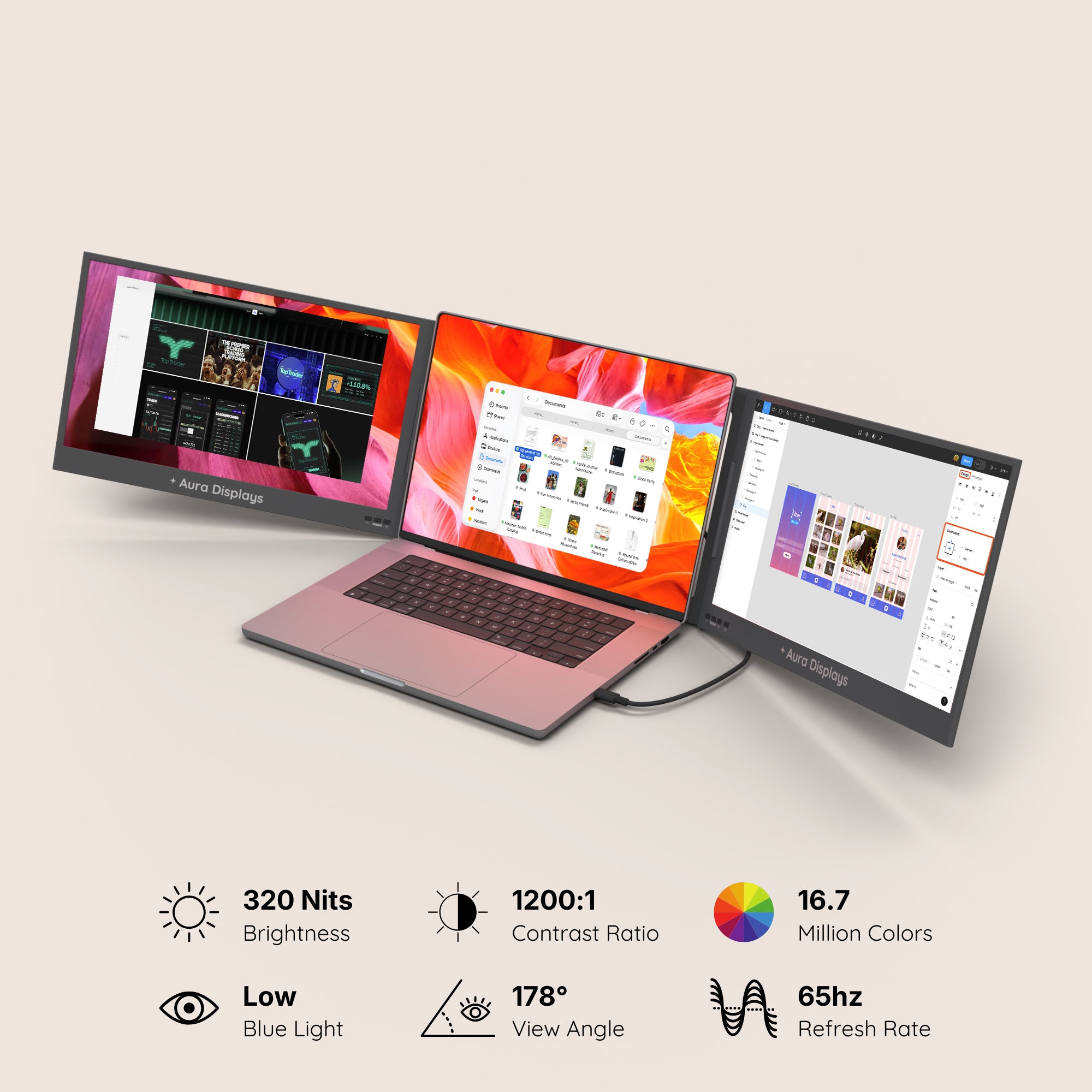
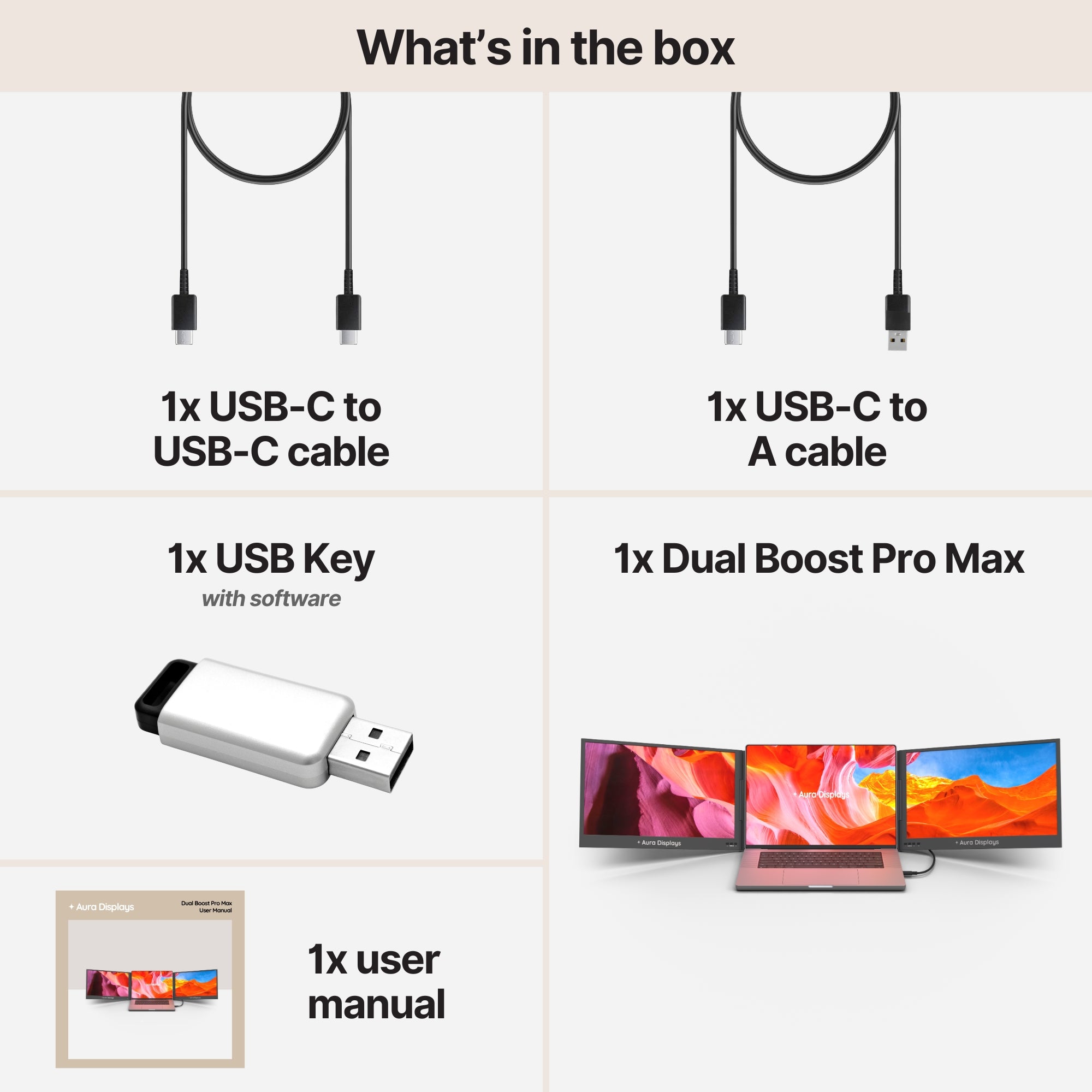
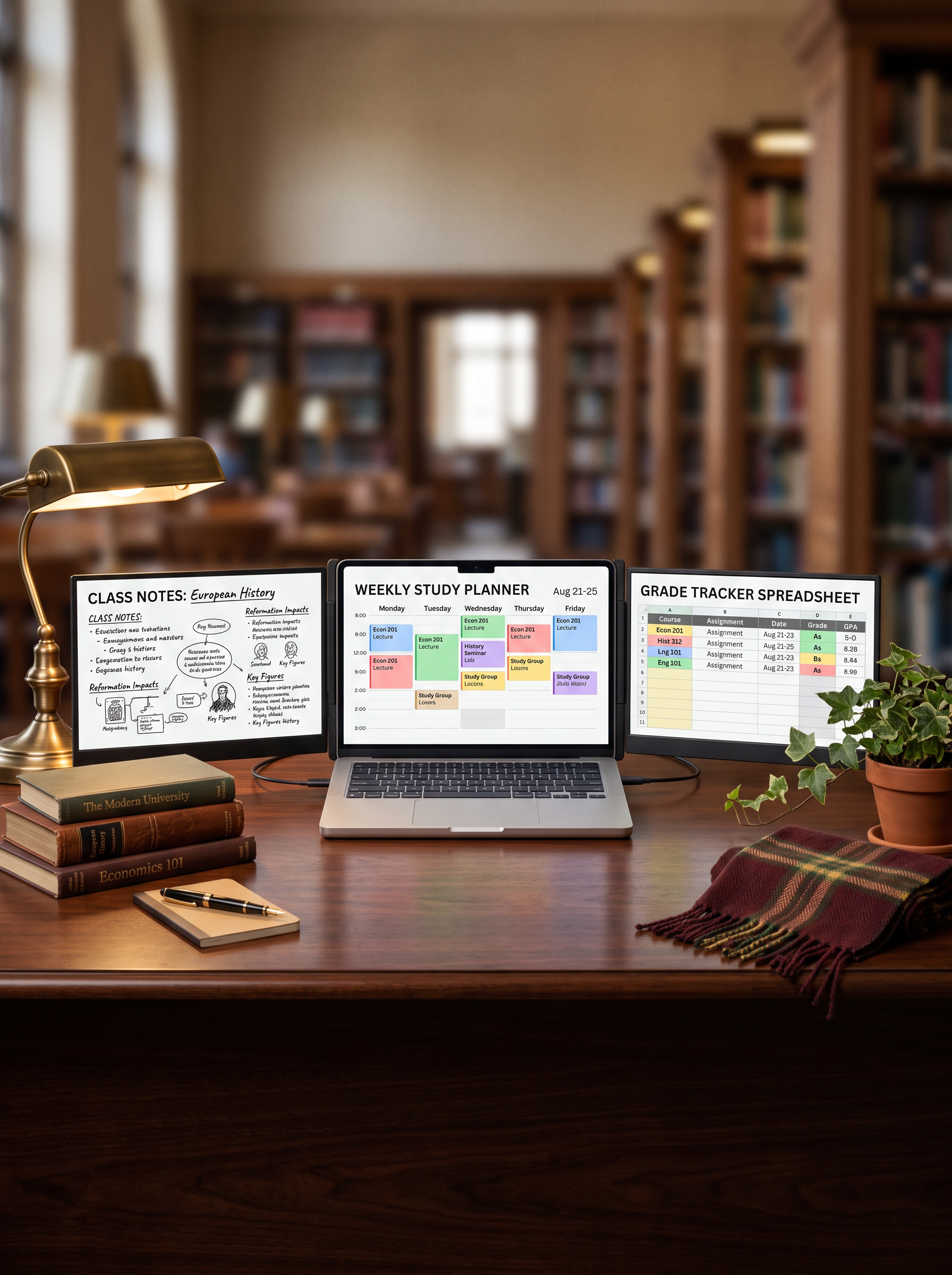
- Two extra screens — the default for coursework with several live inputs: lecture recording, notes, and the assignment brief. The Dual Air 14" ($399) stays light; the Dual Boost Pro Max 15.6" ($469) trades some portability for meaningfully more usable area.
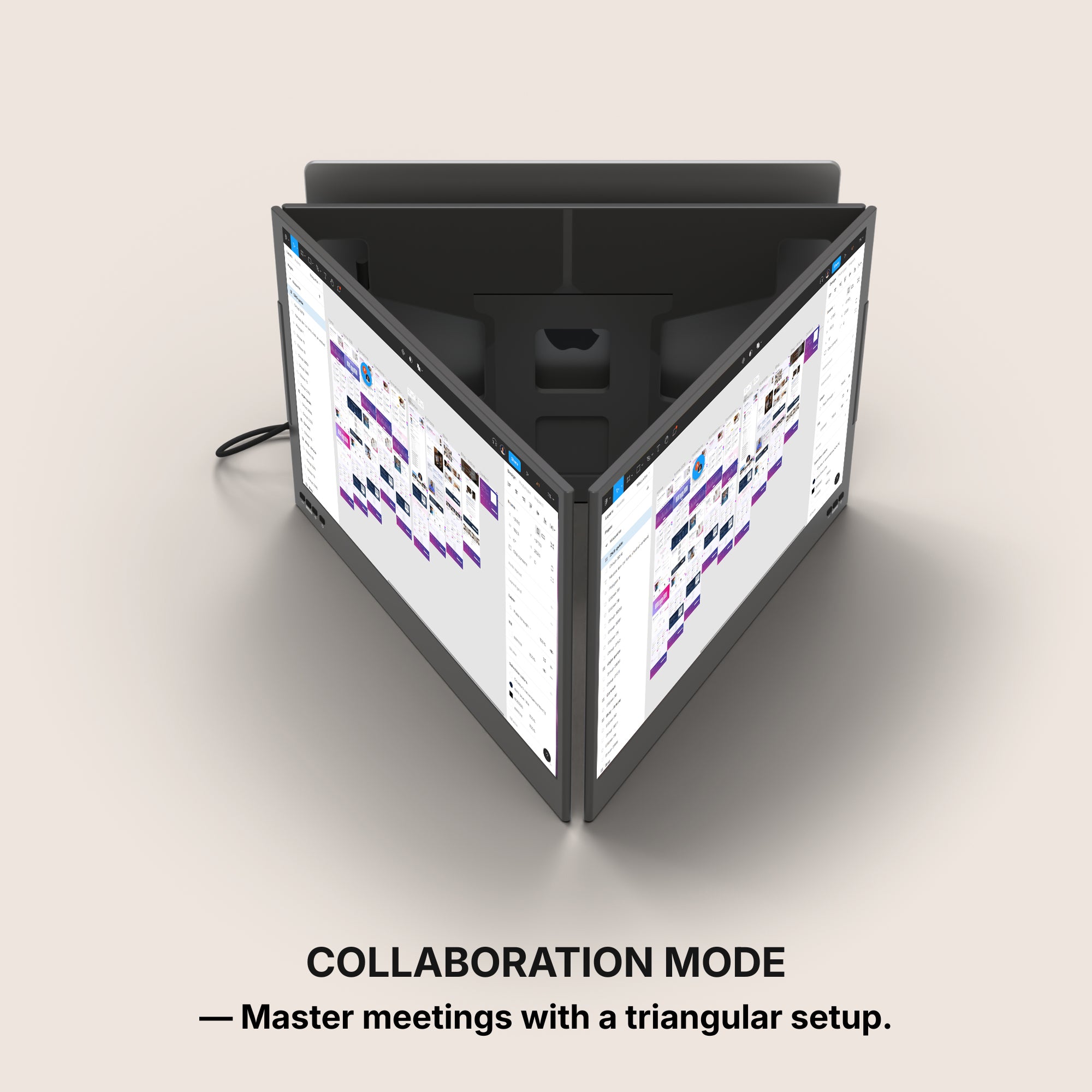
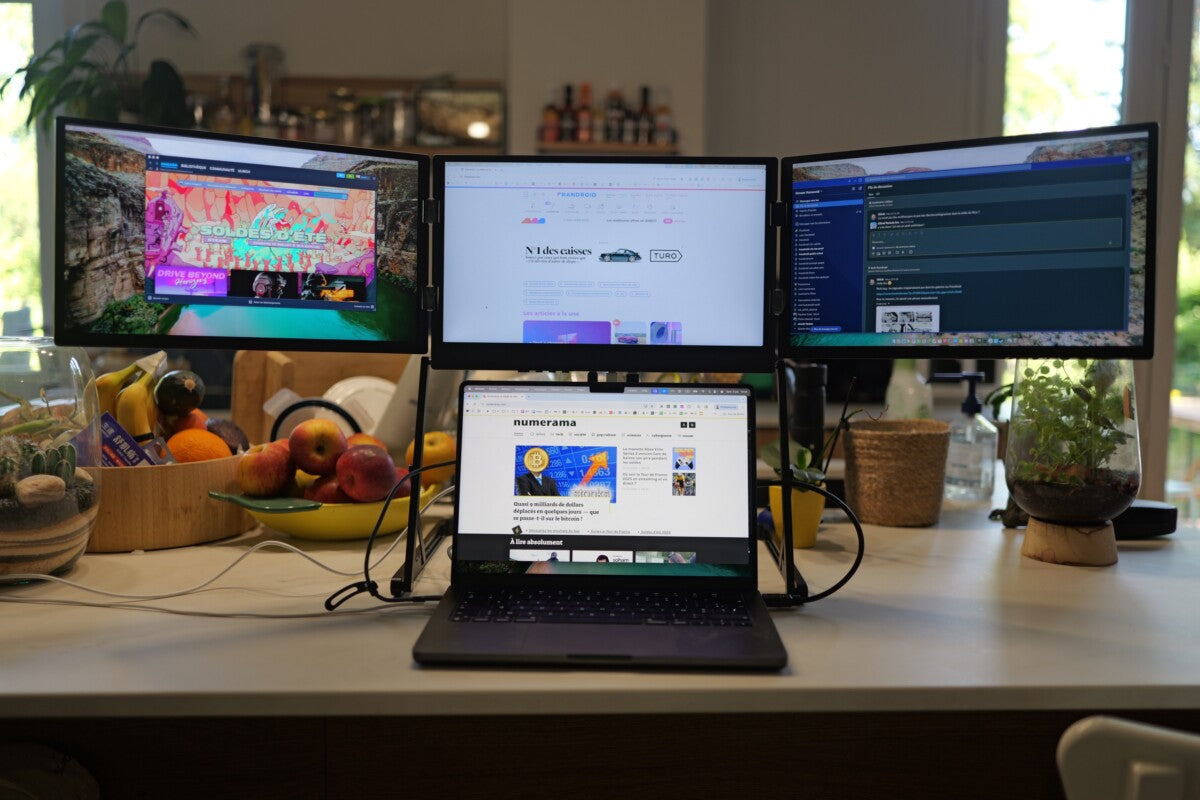
- Three extra screens — worth it for computer science, engineering, finance and video work, where you are genuinely watching three things at once. The Triple Boost Pro (from $499) and Triple Aero Pro Max (from $549) cover this. For an essay-writing student, this is overkill and we will say so.
What to check before you order
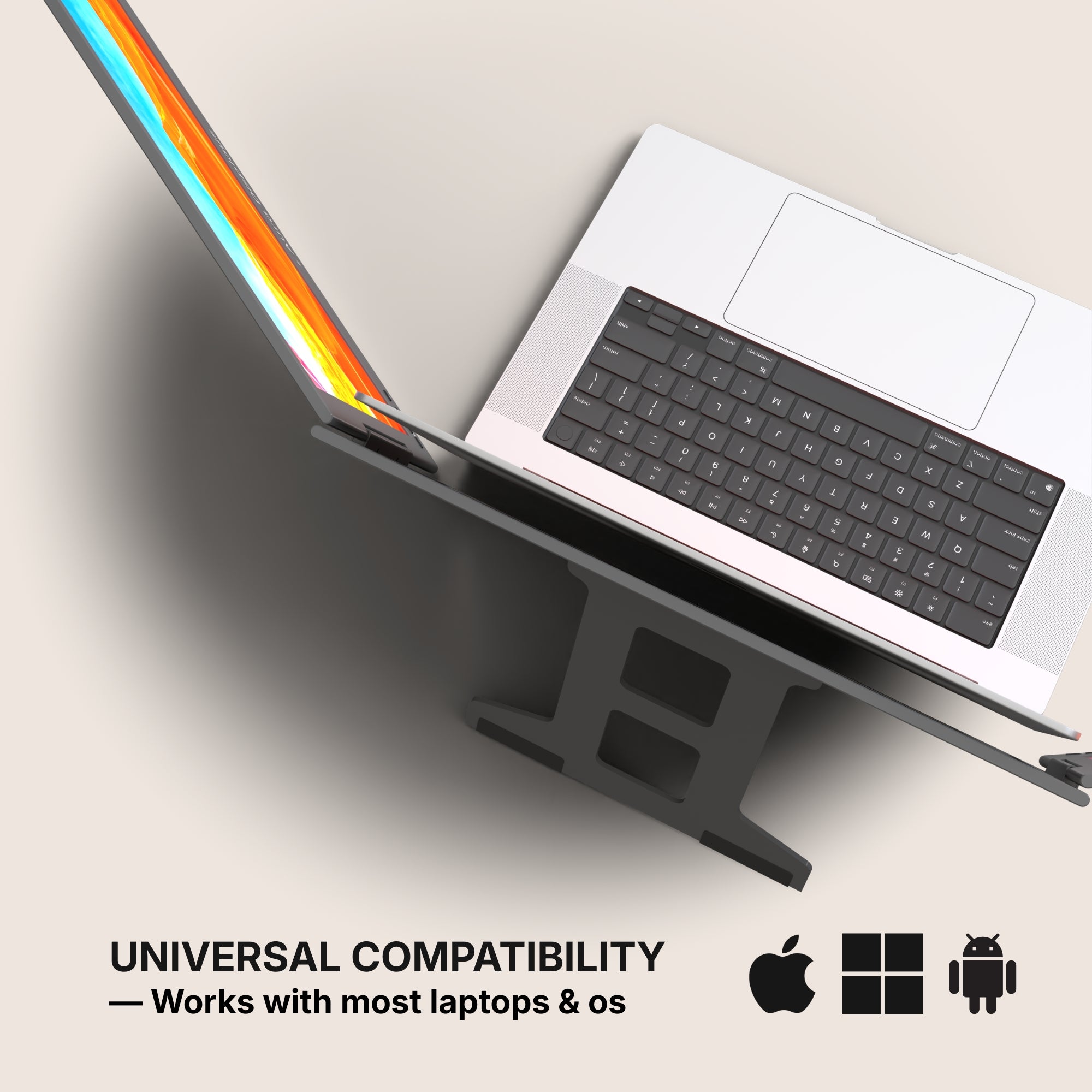
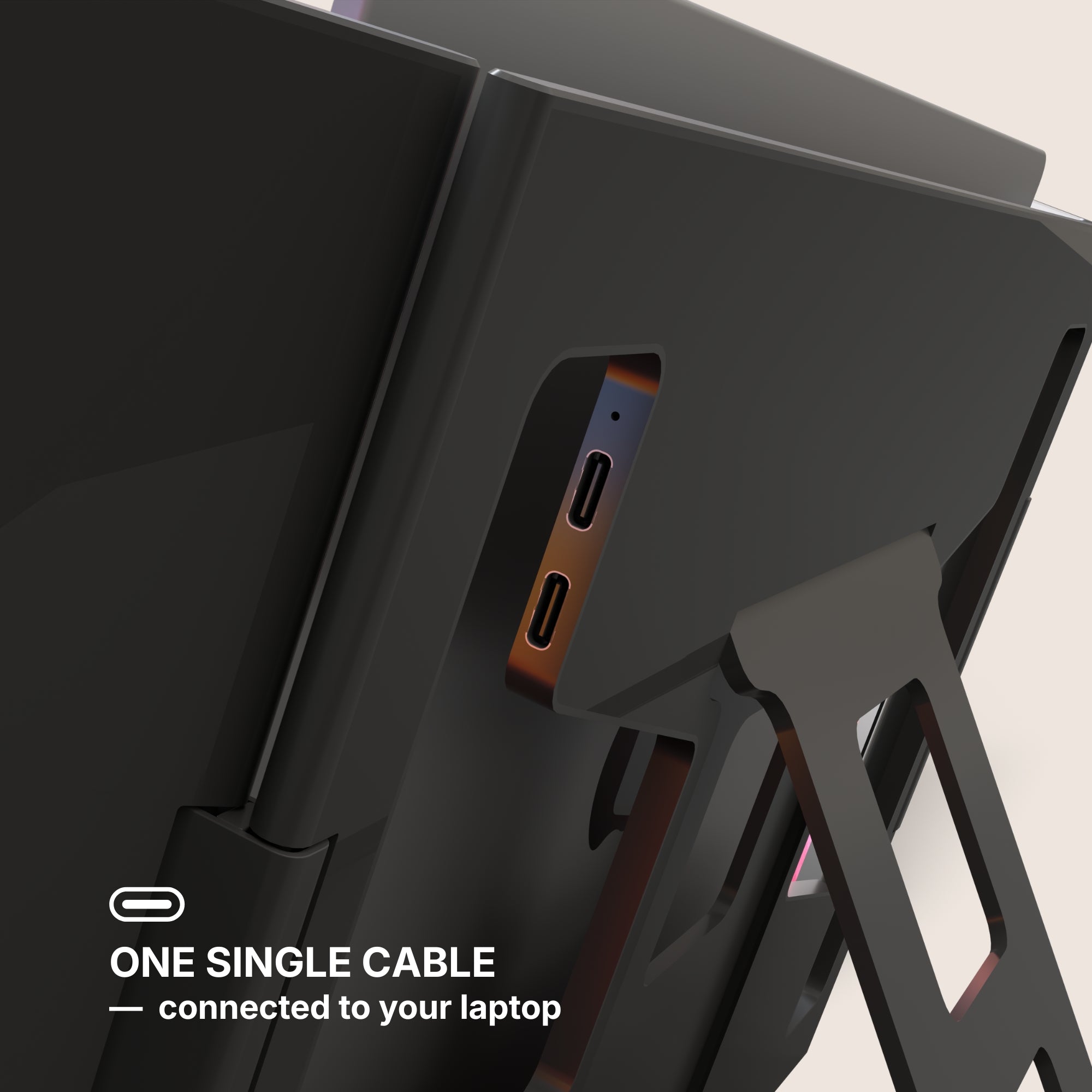
- Ports. You need a USB-C port with display output on the laptop. Most machines from the last five years have one; some budget Windows laptops route video only through HDMI.
- Screen size vs laptop size. Panels significantly larger than the laptop lid look impressive and travel badly. Matching the lid size is the safer choice for anything carried daily.
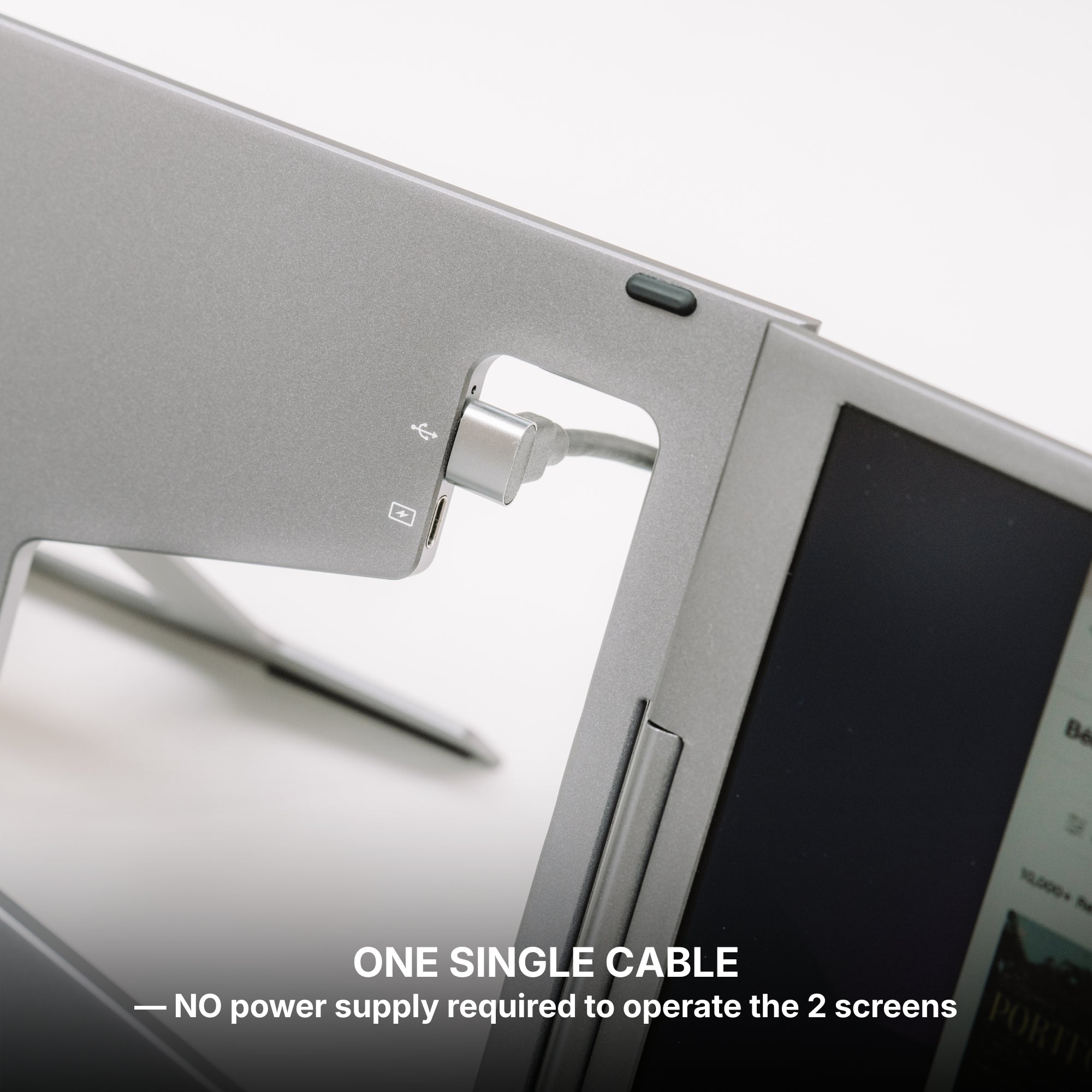
- Power. Extra panels draw from the laptop battery. If your day has no outlet in it, budget for a power bank or accept a shorter session.
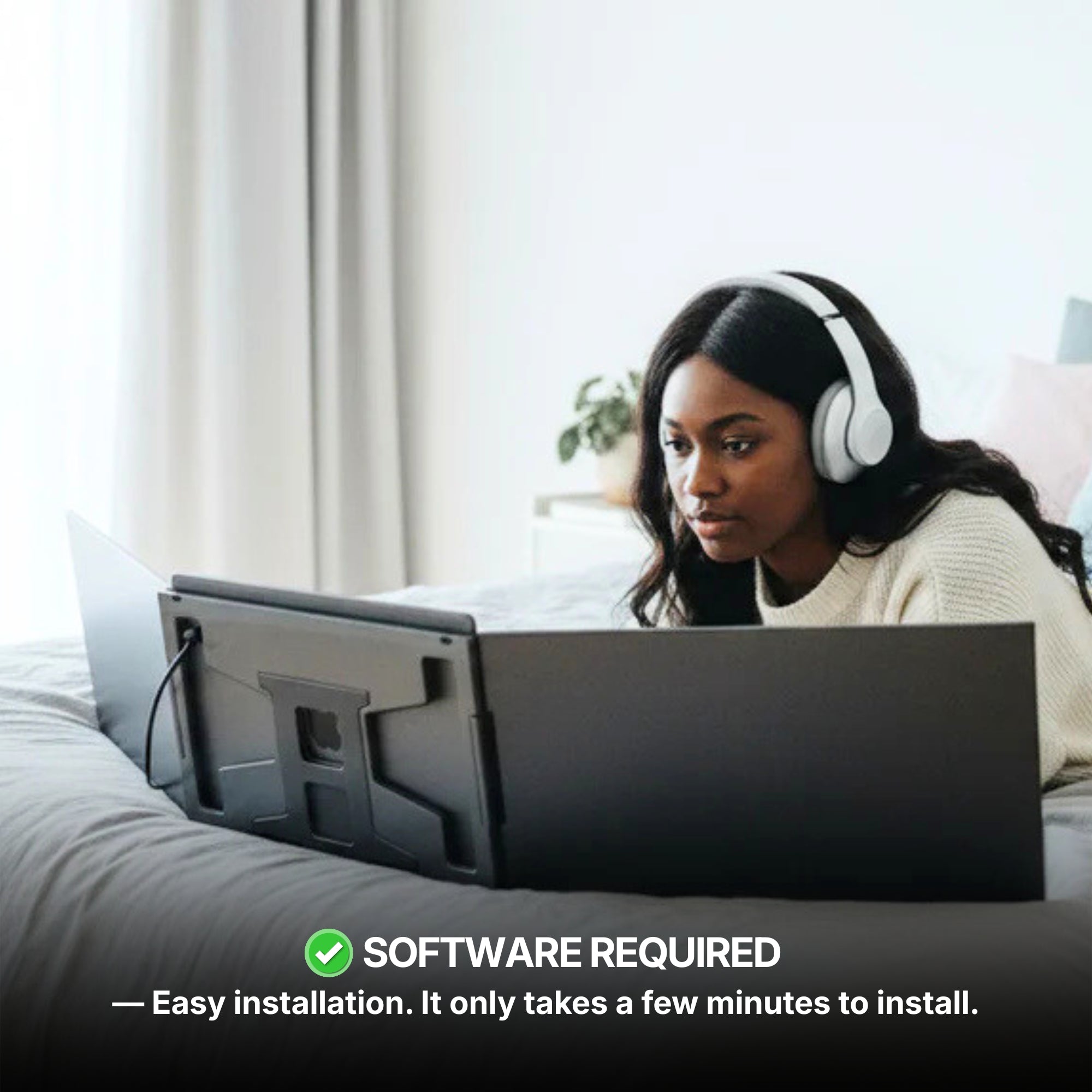
- Driver step. Some Windows setups need a one-time display driver install. Mac and most recent Windows machines do not.
The version of this that is a mistake
Buying three screens for a workload that needs one. Buying the largest panels for a student who walks across campus four times a day. Buying anything at all before measuring the desk.
The setup that gets used every day beats the setup that photographs well. If you are unsure which category you fall into, start with one extra screen — it is the cheapest way to find out whether the problem was ever really the laptop.
Our back-to-school window runs from 13 August to 2 September.




















Share: