


Who this is for
You cut dialogue, music or podcasts on a laptop, you spend the day inside one long timeline, and you are tired of opening and closing the same three windows.
What goes on each screen
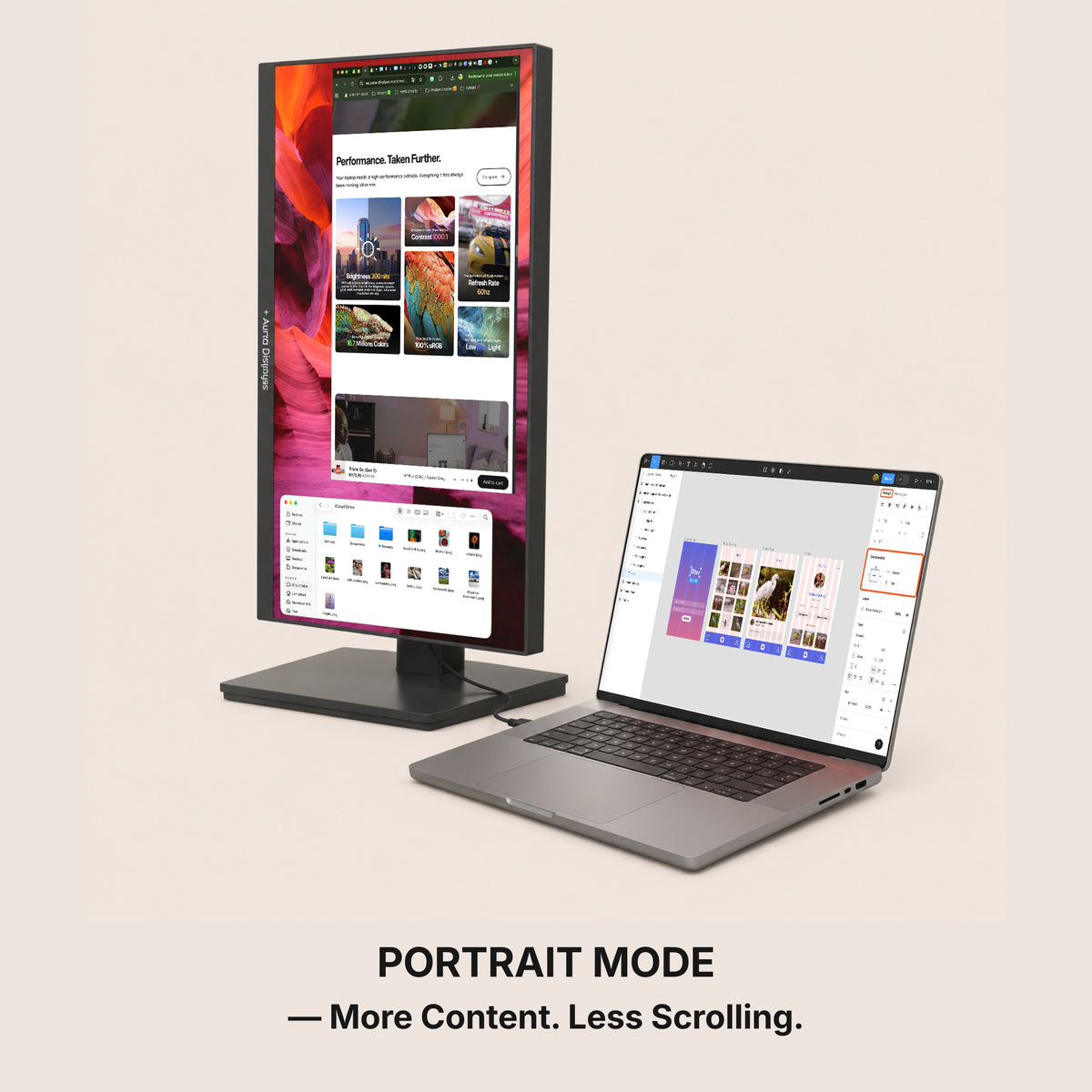
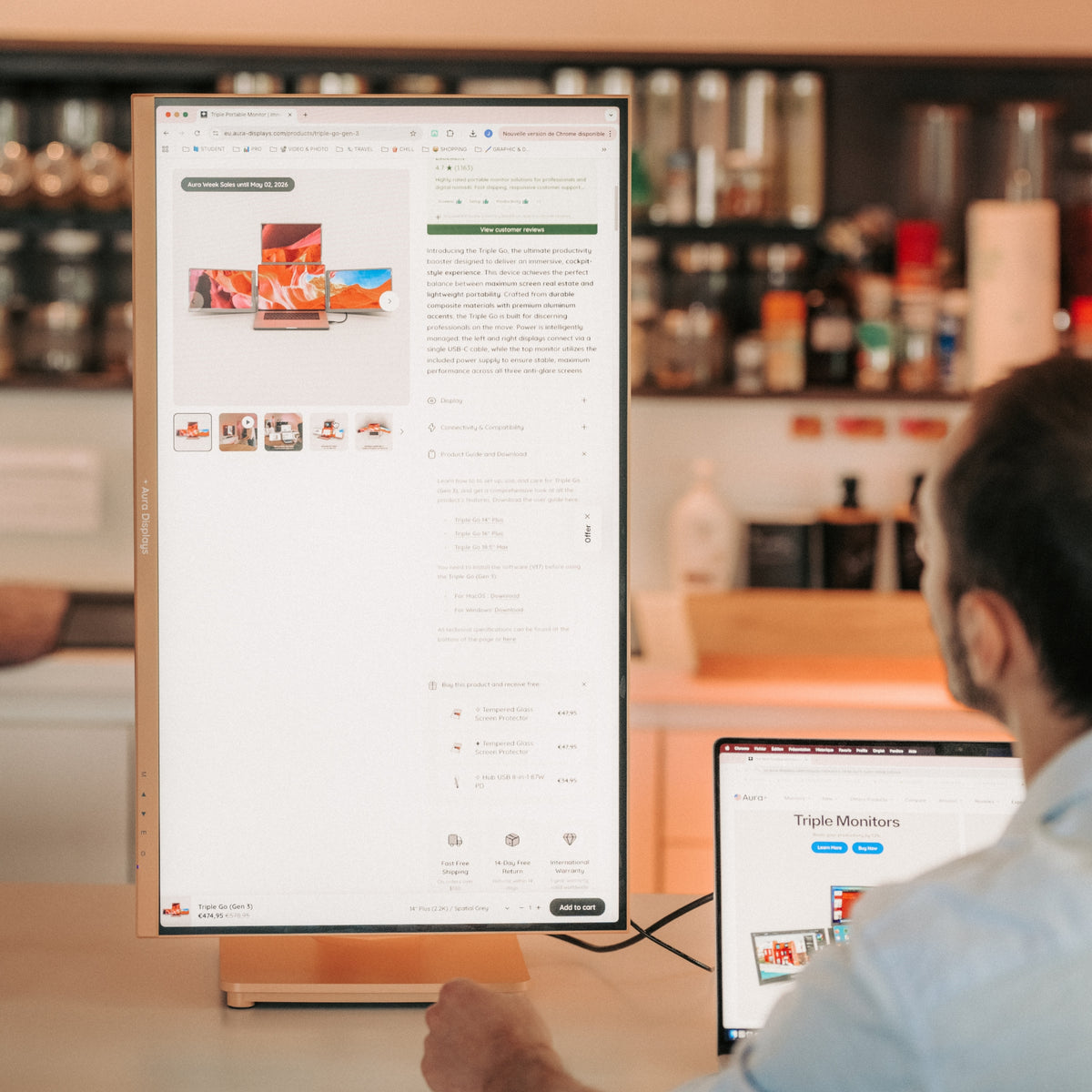
- The big screen: the timeline, full width, nothing else on it. The arrange or edit window across the whole panel. Width is the entire point — a session you can see end to end is a session you stop scrolling, and scrolling is where the hours go.
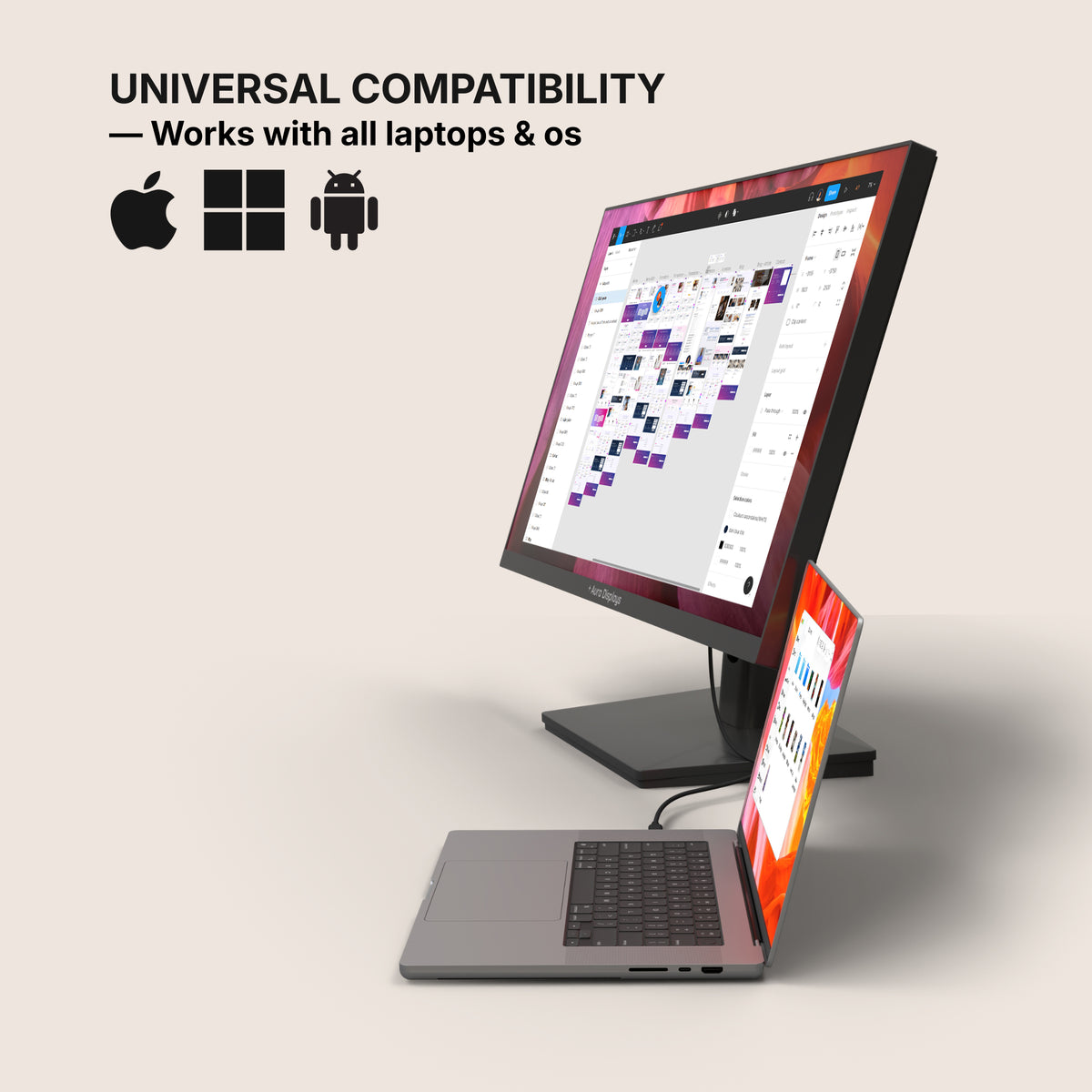
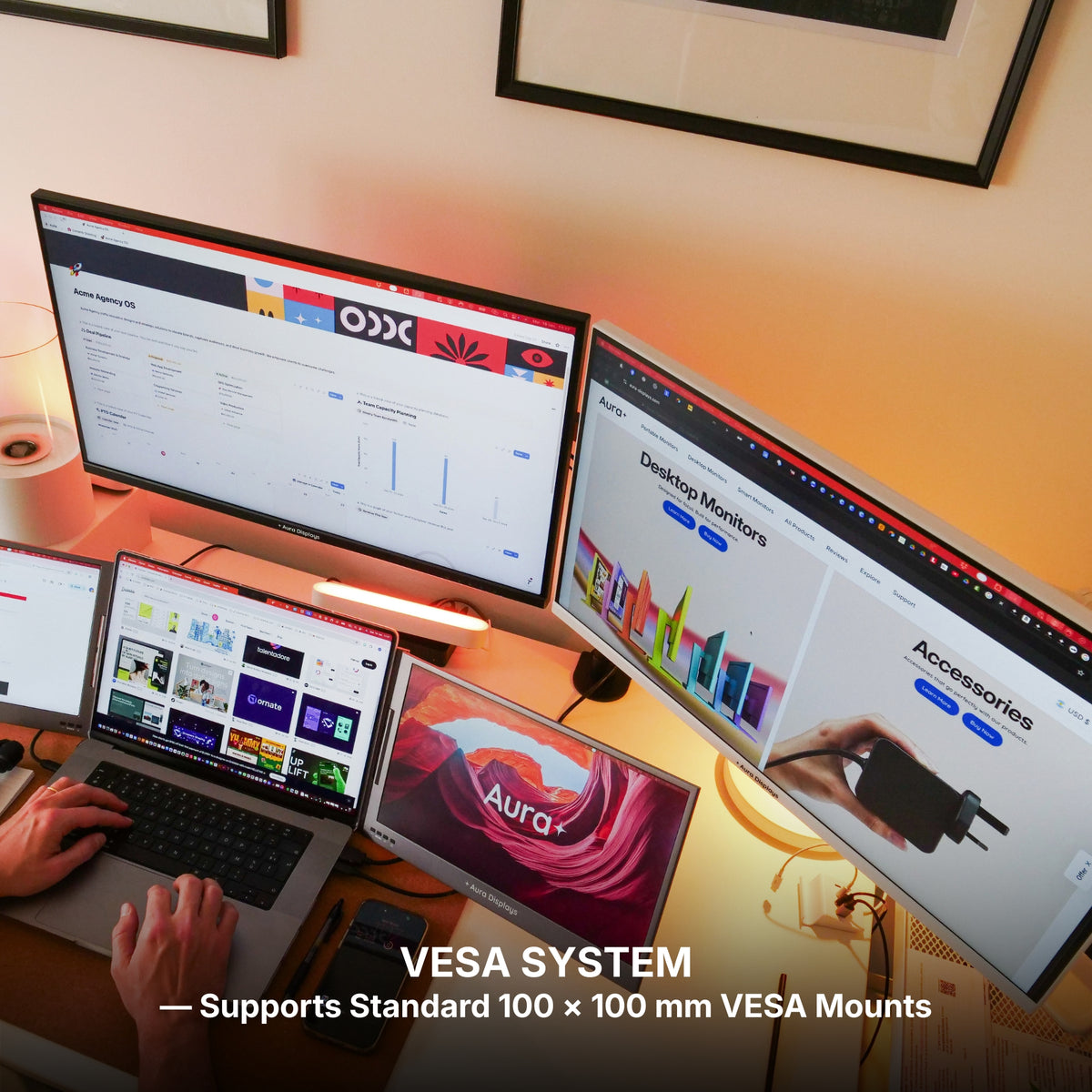
- The laptop: the plugin rack and the mixer. Insert windows, the EQ, the compressor, the channel strip you keep reaching for. It sits low and close, and it does not matter that it is the smaller screen: you reach for these, you do not read them.
- Whatever is third — a tablet, a second panel, a printed page: the script, the edit notes, the brief. Not the mixer. The mixer already has a home.
- The failure mode is predictable. People put the mixer on the big screen because a wall of faders looks like the job, then spend the day editing a waveform in a thousand pixels of height.
The software settings that make it usable
- Reaper. View > Mixer toggles the mixer; right-click its tab to undock it from the docker and drag it onto the laptop. Then save the arrangement under View > Screensets/Layouts as one edit layout and one mix layout, so a single key brings each back after you unplug and replug.
- Pro Tools. Window > Mix and Window > Edit move you between the two — put them on separate screens and stop toggling altogether. Window > Configurations > New Configuration stores the whole window arrangement, including which screen each window lives on.
- Logic Pro. Window > Open Mixer gives the mixer its own window you can park on the laptop permanently. Logic’s Screensets save the complete arrangement to a number key — press the number to recall it.
- Adobe Audition. Drag the panels where you want them across both screens, then Window > Workspace > New Workspace to keep it. Audition will otherwise rearrange itself the next time the display count changes.
- Set the main display deliberately. Windows 11: Settings > System > Display, select the big panel, tick Make this my main display. macOS: System Settings > Displays > Arrange and drag the white menu-bar strip onto it. This decides where a new plugin window opens, and getting it wrong is the single most irritating thing in a long session.
- Audio device first, screens second. This is the configuration trap of the job: plugging in a display can re-point the system output, and you will not notice until you have made a decision on the wrong path. Set the device explicitly rather than leaving it on the system default — Options > Preferences > Audio > Device in Reaper, Setup > Playback Engine in Pro Tools, Settings > Audio > Devices in Logic Pro. Then check Settings > System > Sound on Windows 11, or System Settings > Sound > Output on macOS, after the cable goes in.
What these screens will not do for you
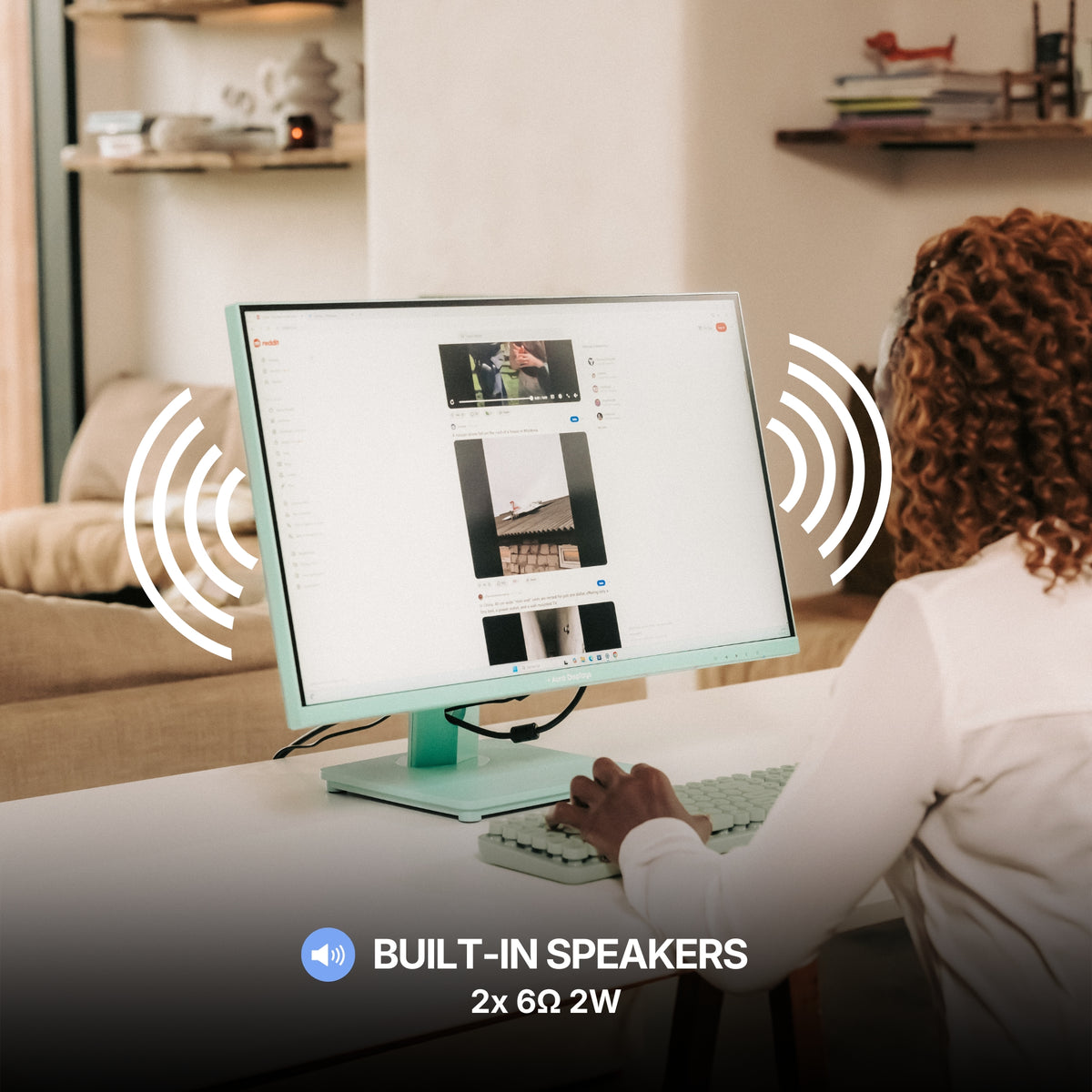
A screen is not an audio interface. Single Glow Infinity (Gen 1) lists a MIC input and an AUDIO output in its connections, and Dual Book Pro (Gen 2) lists a 3.5 mm jack. Those are convenience ports on a monitor. Keep your interface, keep your headphones on it, and keep a display out of the signal path you make decisions on.
More screens do not shorten the edit. They remove window switching, and that is all they do. If your session is three tracks of voice and a music bed, you are not switching windows often enough for a second surface to pay for itself — and that is a real answer, not modesty.
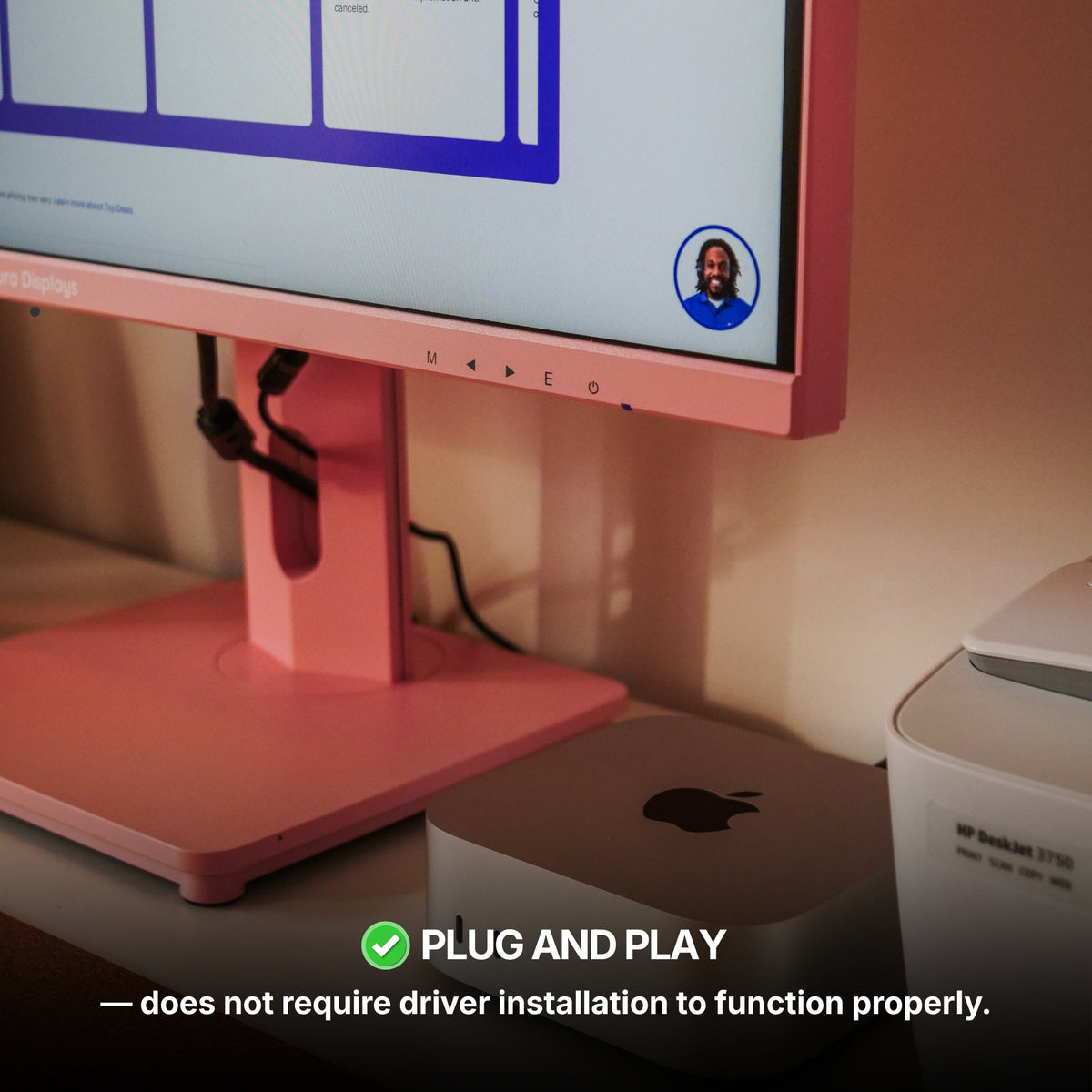
And one limit that is specific to us. Our Boost and Triple ranges read Software required under Filter: Driver, which means a display driver is running while your plugins are. On a session with a long chain, a display stack competing for the same processor is the last thing you want. It is why the recommendation below is plug and play and takes a DisplayPort or HDMI cable natively.
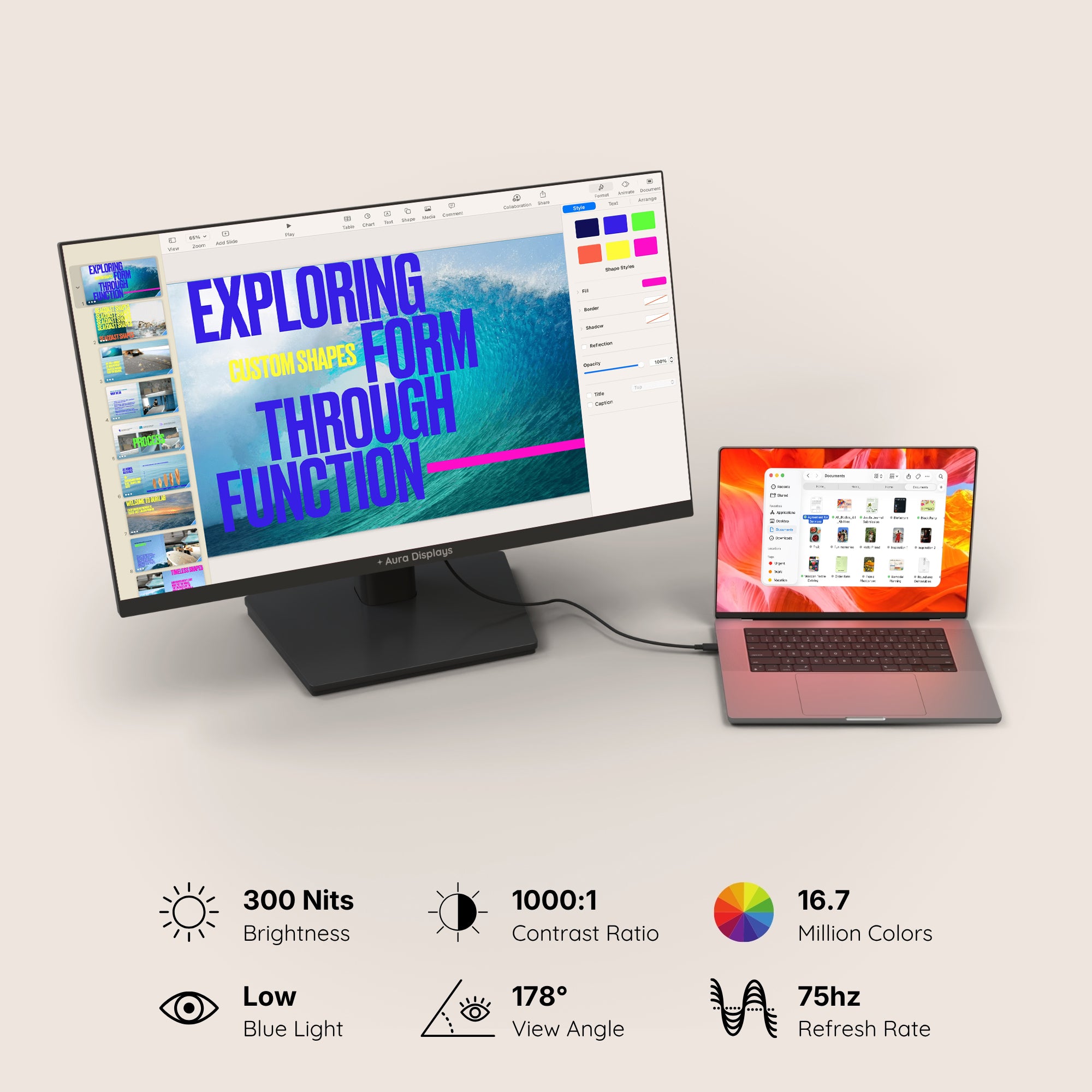
Colour, as ever. No product page in our catalogue declares a colour gamut, and our panels sit between 280 and 320 nits. Fine for waveforms. Not a surface for judging the picture you are cutting sound to.
The setup we recommend, and the cheaper one
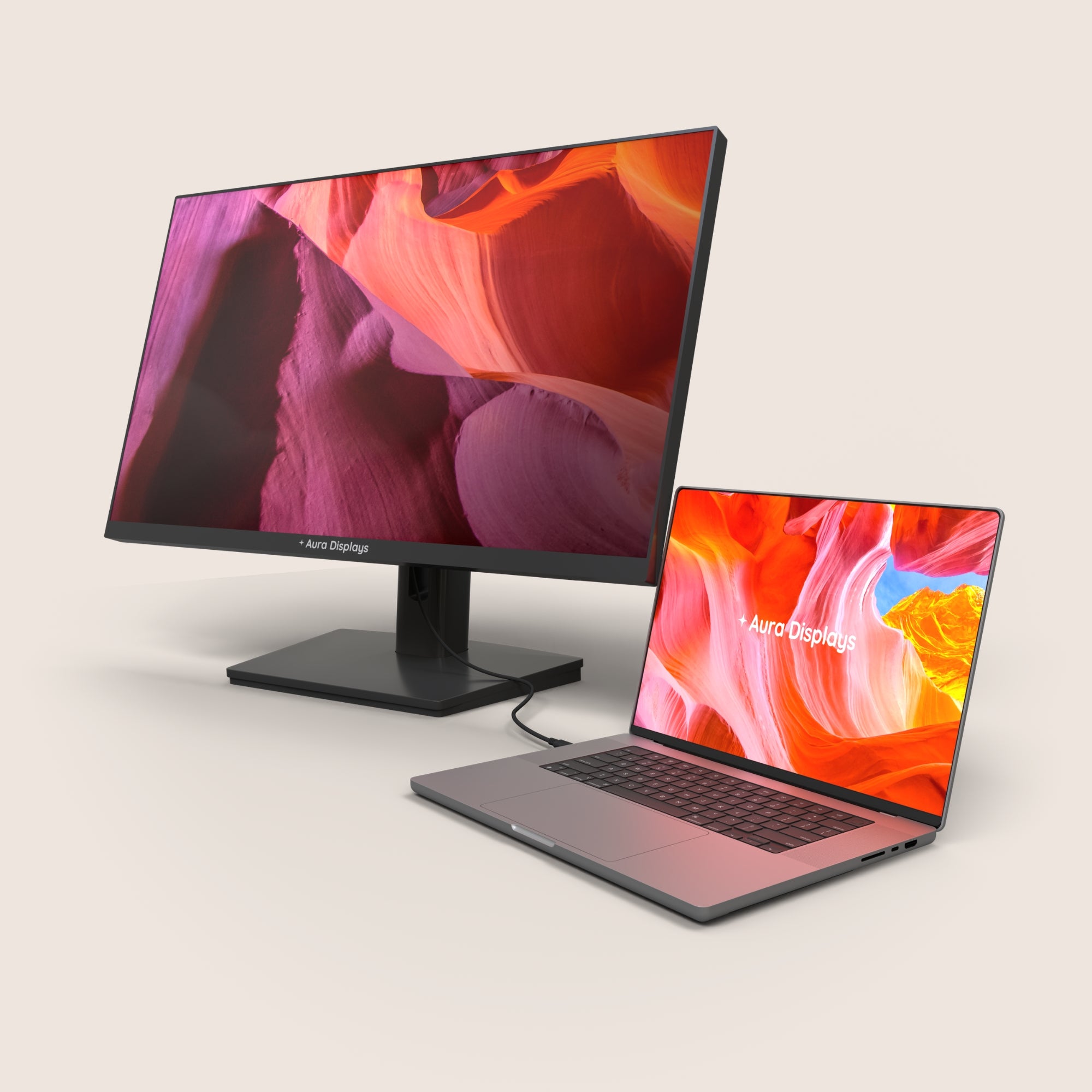
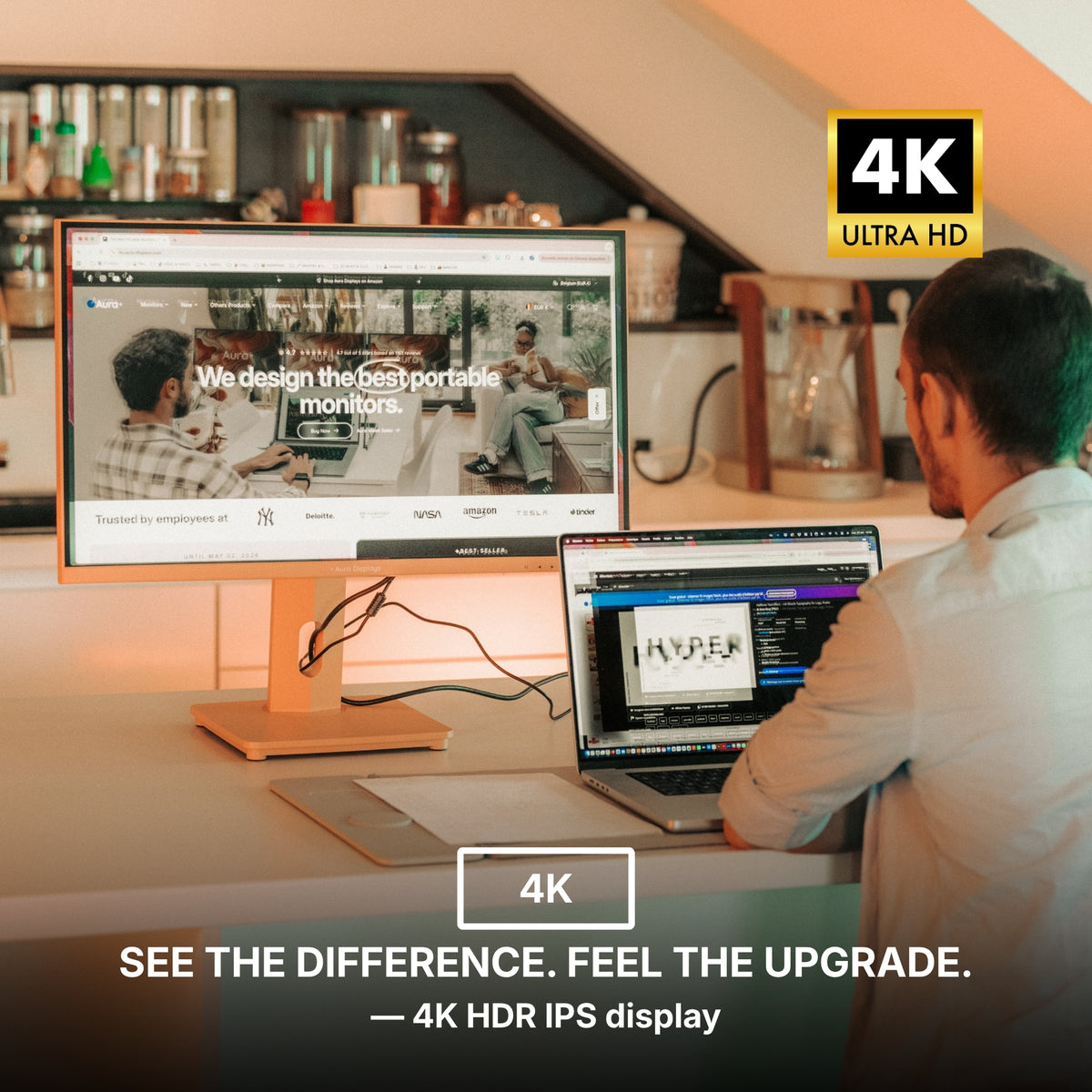
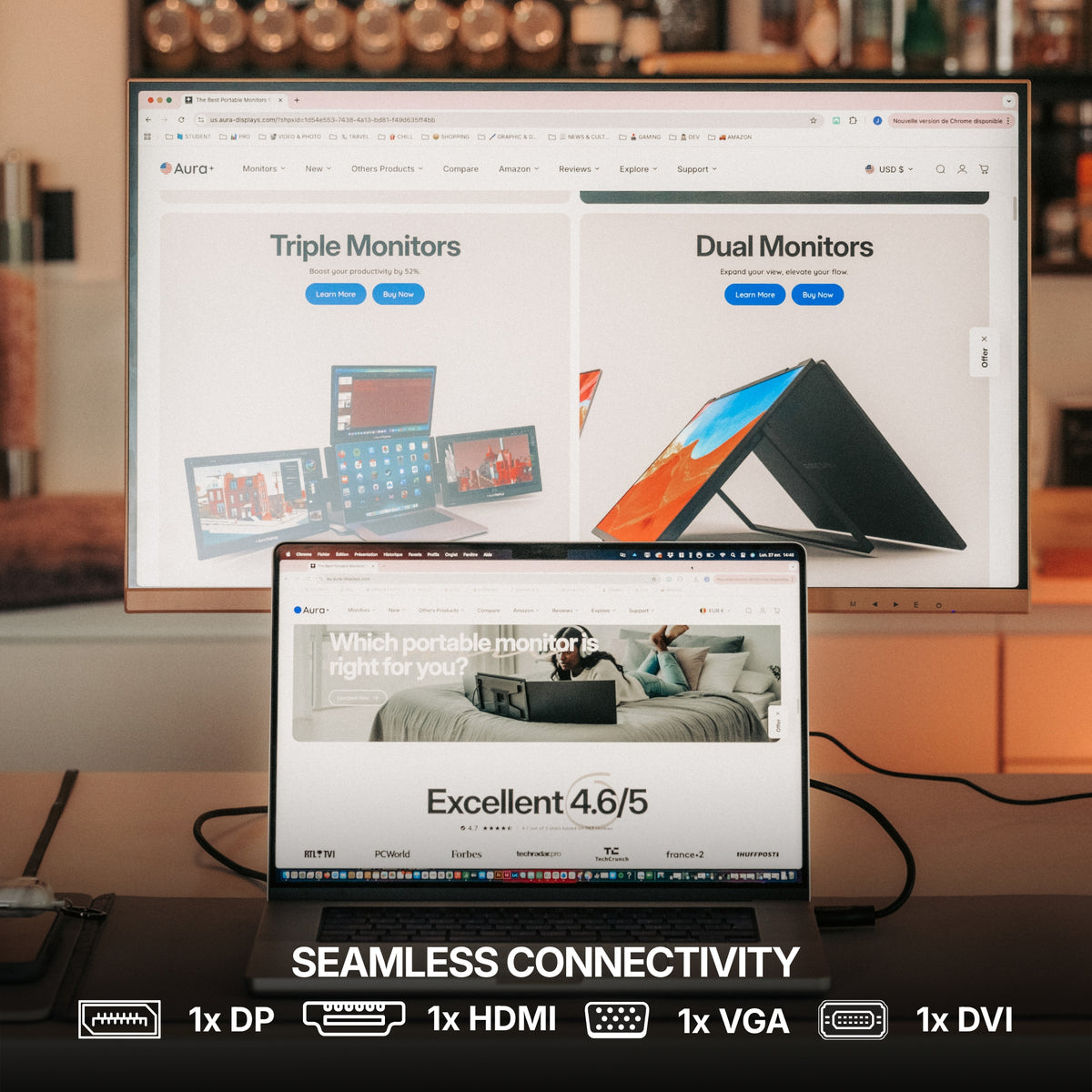
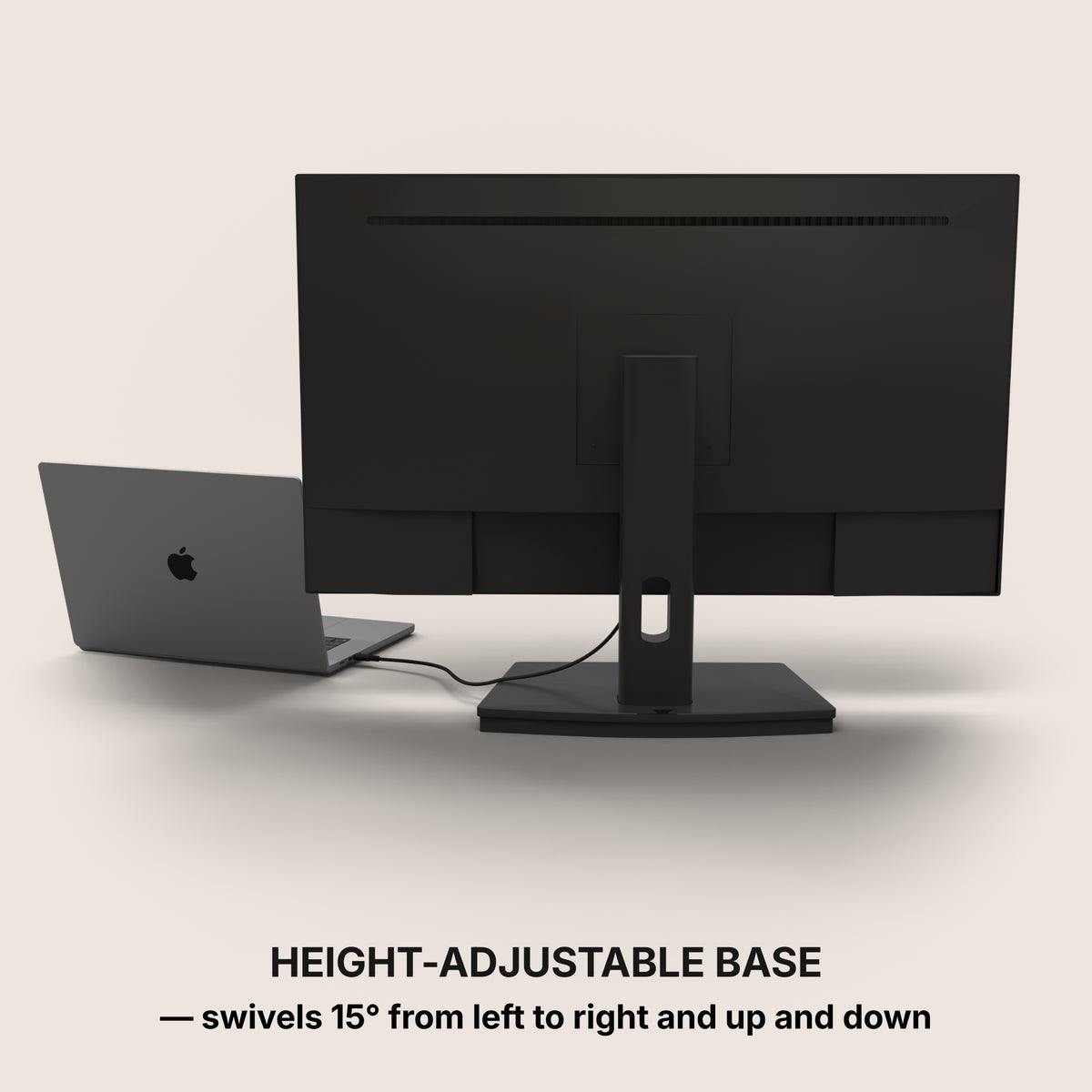
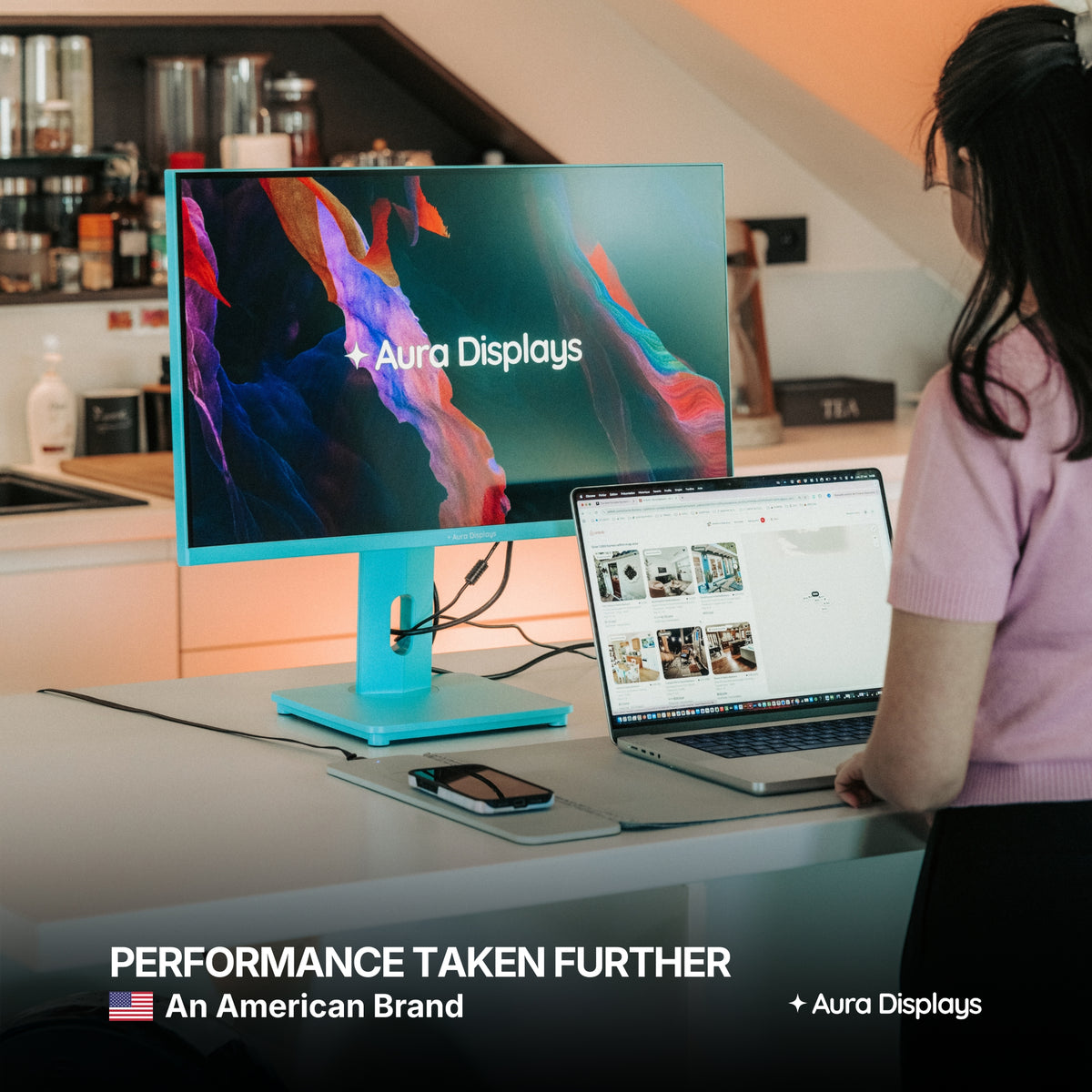
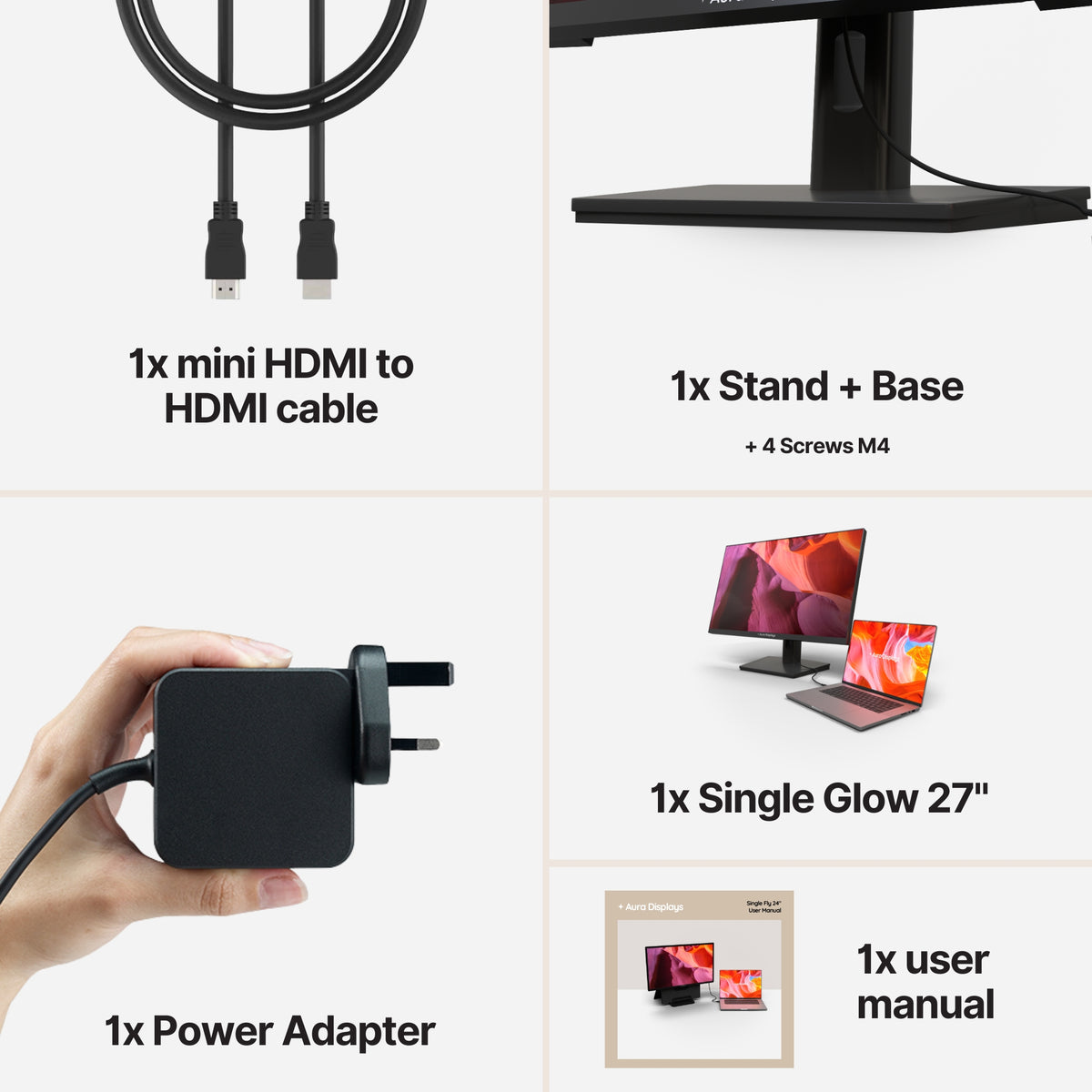
Our recommendation: Single Glow Infinity (Gen 1), $419. Twenty-seven inches at 3840 × 2160, 300 nits, plug and play with no driver, and the broadest connections list we publish: DisplayPort, HDMI, DVI, VGA, plus a MIC input and an AUDIO output. The first two are the reason it is here — a native DisplayPort or HDMI cable keeps software out of the display path completely, which is exactly what the section above asks for. At 27 inches, 4K is also where a full-width timeline stops being a compromise. It runs on mains power and it stays on the desk; that is the trade. We publish no review score on this product, so we are not going to show you one.
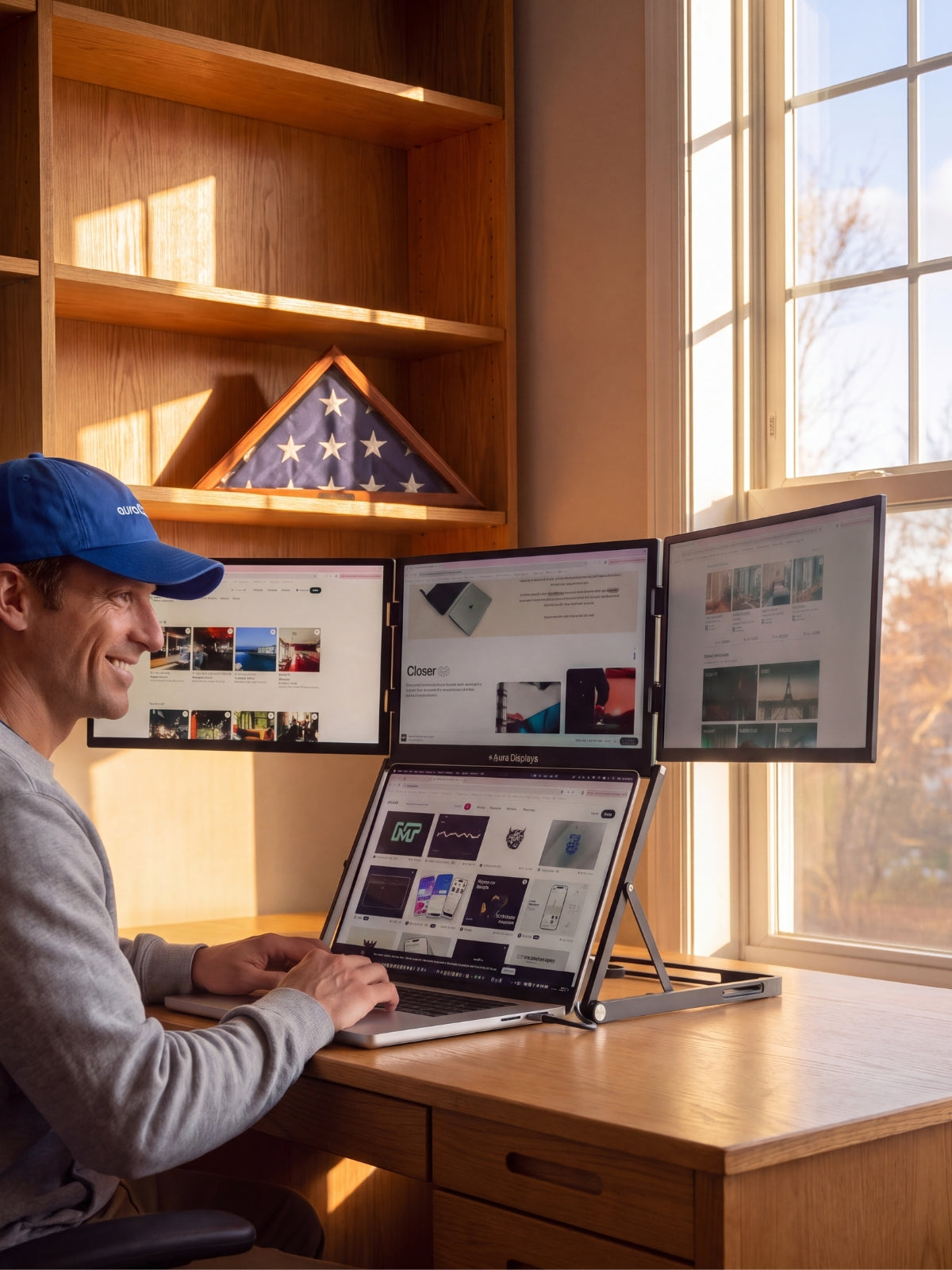
The cheaper option: Dual Book Pro (Gen 2), from $389. Two attachable panels, plug and play, 3× USB-C, 2× mini HDMI and a 3.5 mm jack, in 15.6" and 16", Full HD or 1920 × 1200. Rated 4.63 out of 5 across 153 reviews. Take this one if you edit in more than one place: it folds onto the laptop and travels, and two panels plus the laptop screen covers the layout above. What you give up is the width and the native DisplayPort.
Why we are not selling you more. Triple Boost Pro (Gen 2), from $499, gives you three panels — and reads Software required, lists macOS, Windows, Android and Ubuntu only, and connects over 2× USB-C with no native DisplayPort or HDMI. For a video editor that trade is often worth making. For an audio session it is the wrong one: you would be spending processor time on screens in order to host windows we have just told you to put on the laptop.












Share: